1. Disney Dreamlight Valley
  2. News

Disney Dreamlight Valley News

Avatar Porting Walkthrough


Hey Valley Villagers!

After seeing your selfies created in the Avatar Designer Tool, we cannot wait to see you all in your own Valleys soon! Before you dive into Disney Dreamlight Valley, we want to walk you through how to port your Avatar from the Avatar Designer Tool to the full game on September 6th.

The first step of porting your Avatar to Disney Dreamlight Valley will be to make sure that your Avatar is wearing exactly what items you want to keep from the Avatar Designer Tool. You can only port one Avatar into the game, so choose your outfit wisely! In addition to the exclusive jersey that will be added to your account, you will retain all clothing that you ported your Avatar with. This includes all Touch of Magic tool designs and motifs used. Any Touch of Magic tool design that is not worn on your final Avatar will not be ported to Disney Dreamlight Valley. Never fear, however! Any motifs or clothing items that you were not able to port over will be available for you to find in Disney Dreamlight Valley.

PlayStation users will be unable to port their Avatar to Disney Dreamlight Valley on September 6th. That said, you can expect to be able to port your Avatar to the game later in Fall 2022 with Update 1.
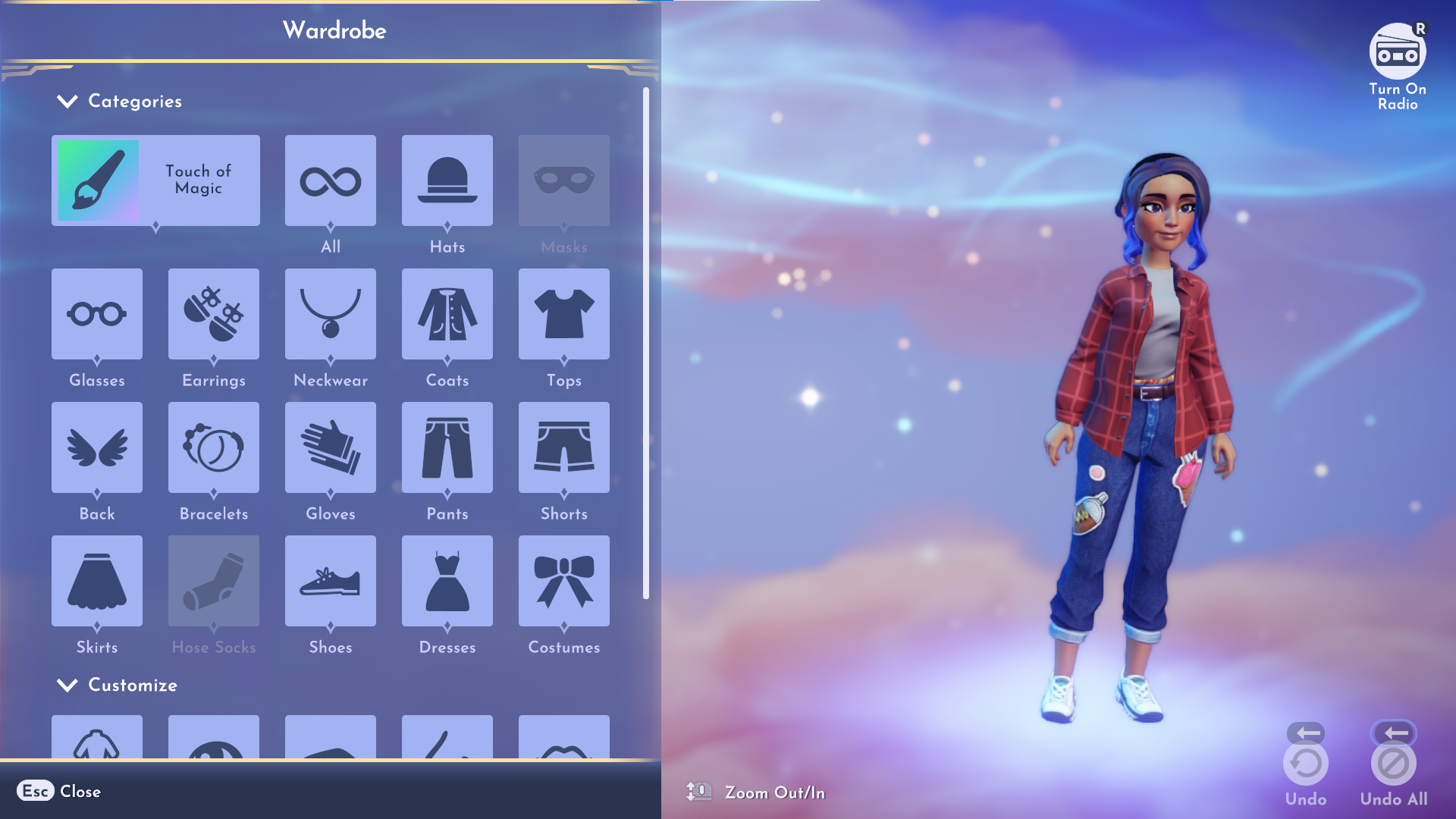


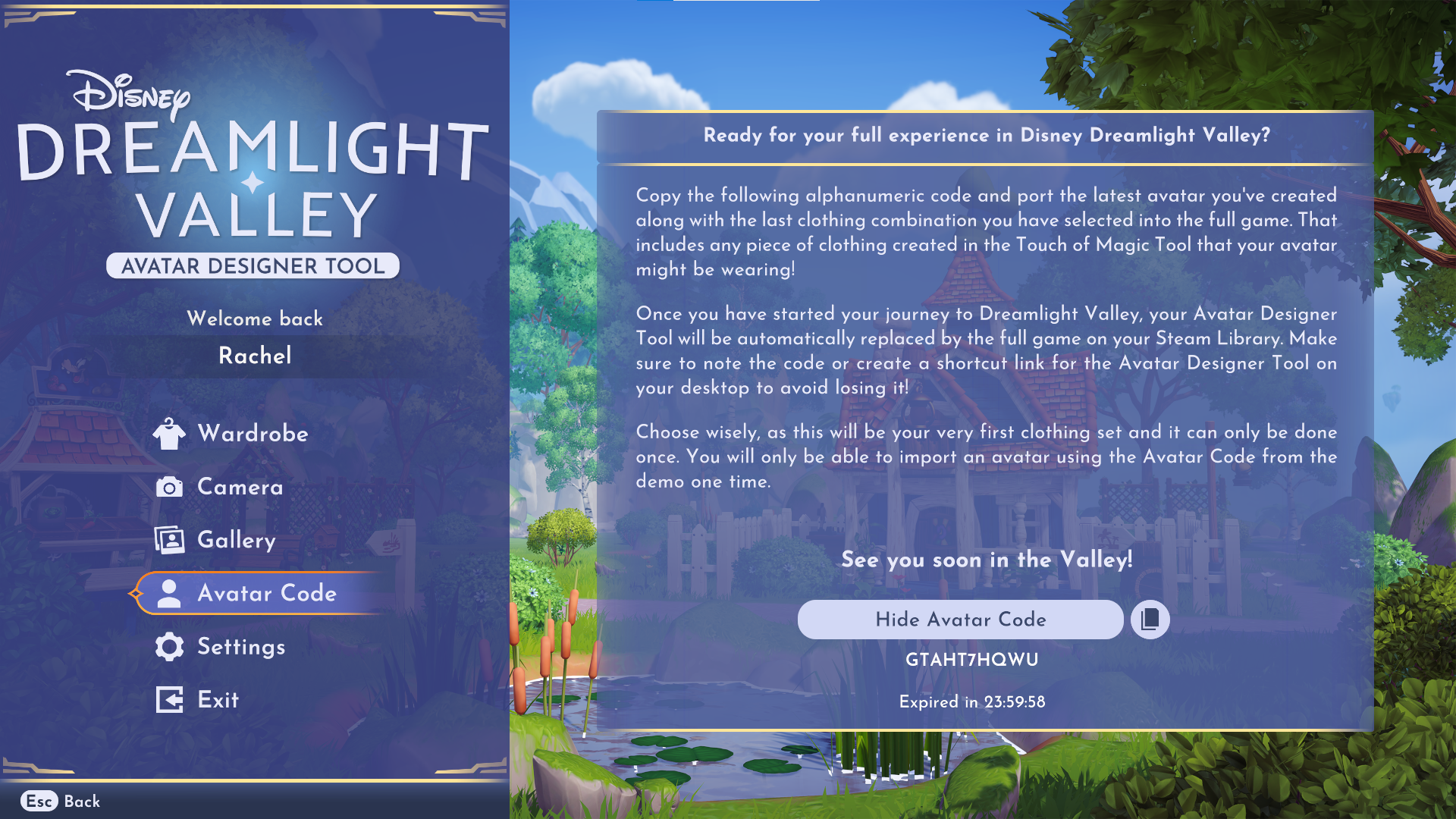
Looking good! Once you have your final Avatar prepared, head back to the Avatar Designer Tool Menu and select the Avatar Code option. From there, you can generate an Avatar Code that you will need to copy via the button. This code will expire in 24hrs, but can be regenerated.

Avatar Codes are agnostic of the platform they were designed on (ie. An Avatar Code created on the Steam version of the Avatar Designer Tool can be used on all other platforms.).

A VERY IMPORTANT NOTE FOR STEAM USERS: Steam users will need to generate their code PRIOR to purchasing Disney Dreamlight Valley on Steam. Please make sure to generate your code before purchasing – once you have purchased a Founder’s Pack Edition on Steam, you will be unable to access the Avatar Designer Tool on Steam.


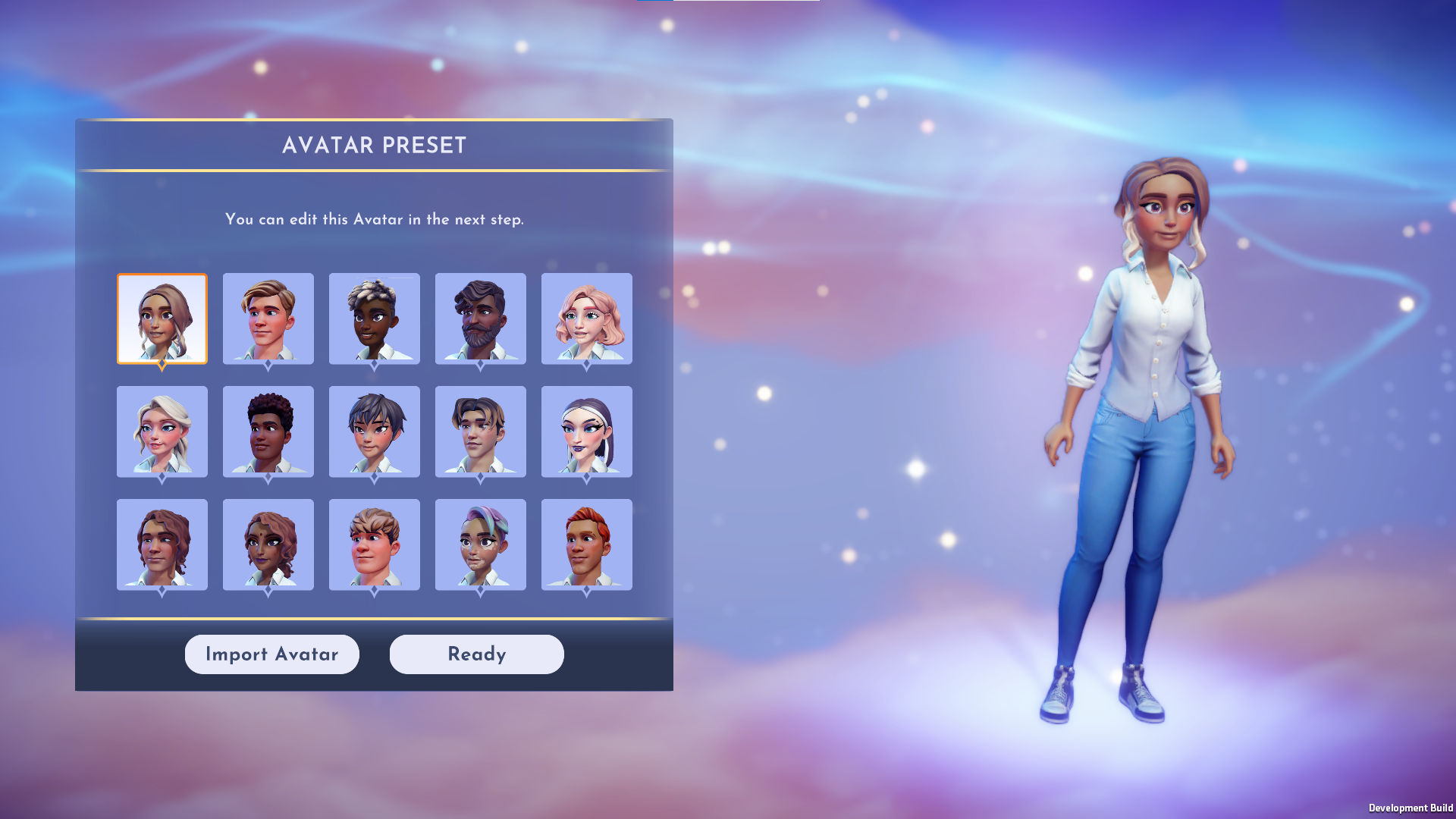
Once you have copied your code, it is time to head over to Disney Dreamlight Valley! Open the game (or purchase the game if you are a Steam user first!) and choose the New Game option. You will then enter the Avatar creation process. If you would like to port your Avatar from the Avatar Designer Tool, select the Import Avatar button.


On the following pop up, enter your Avatar Code from the Avatar Designer Tool with letters in all caps and no additional spaces.
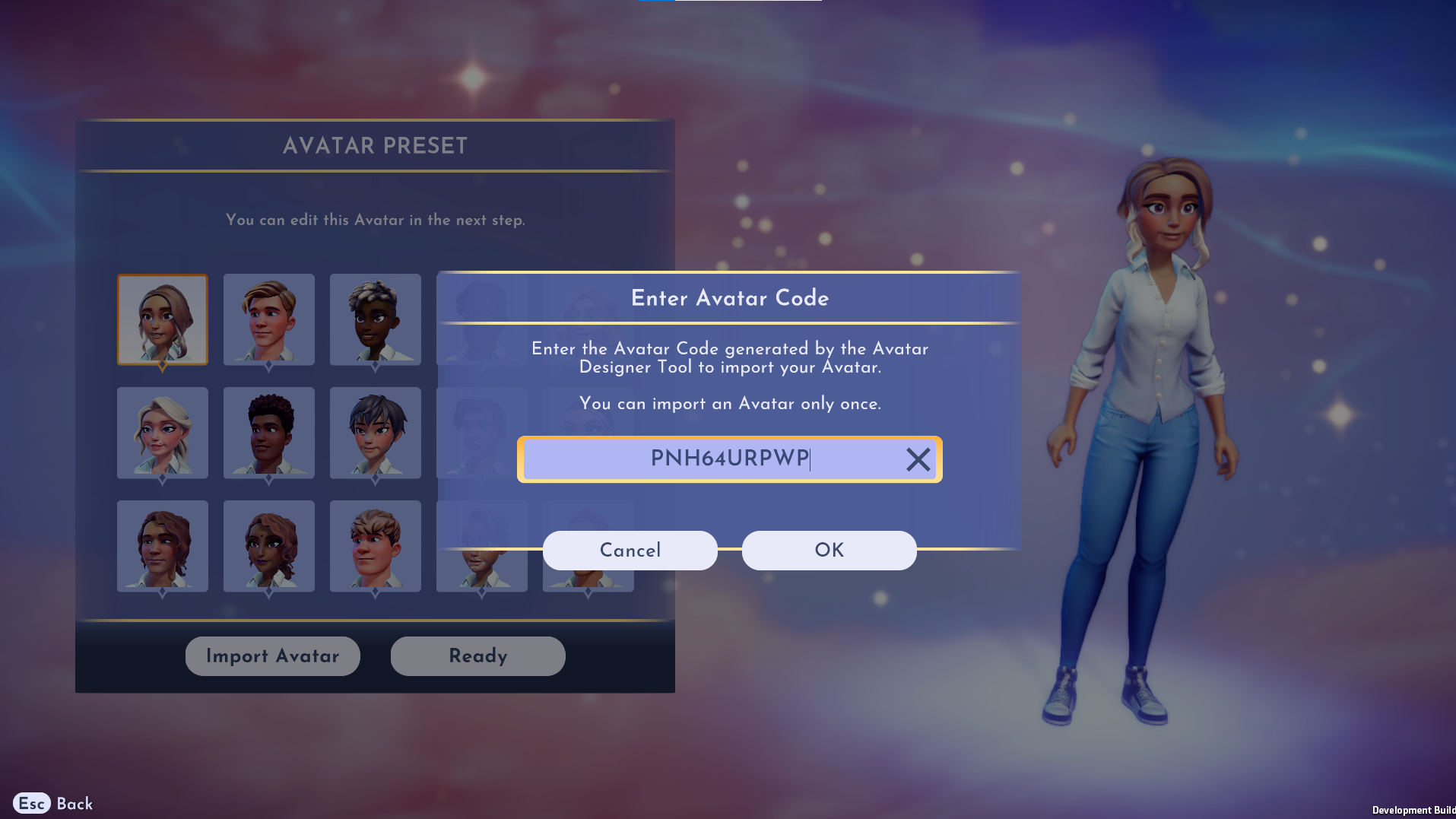


Select the OK button, and you will get the following dialogue:
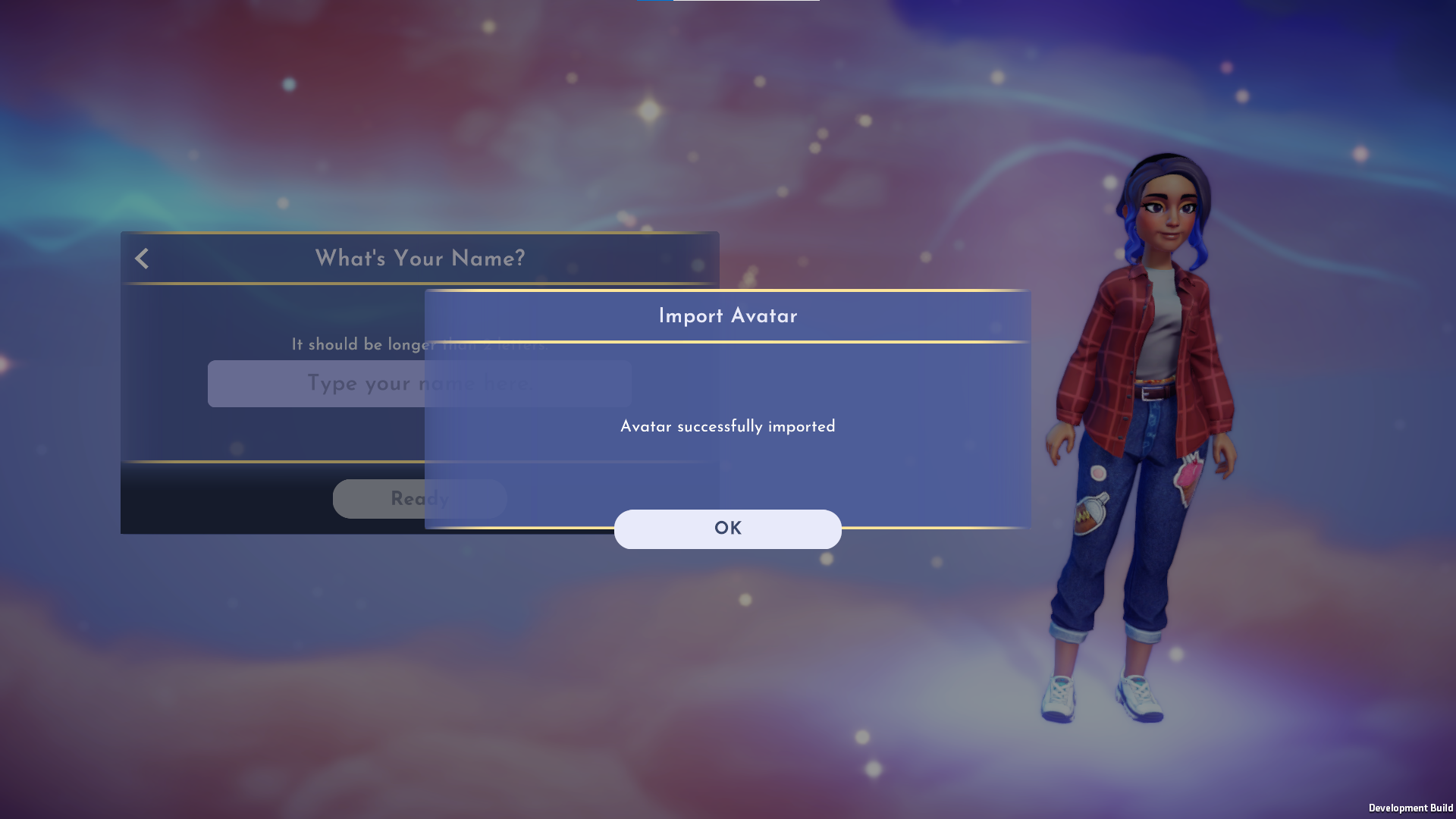


Once you have clicked okay, your New Game of Disney Dreamlight Valley will start, and your Avatar will appear as you designed it in the Avatar Designer Tool. You will also be able to find your exclusive jersey in your wardrobe! You will then be able to choose another name for your Avatar – the name you chose in the Avatar Designer Tool will not be carried over to Disney Dreamlight Valley.
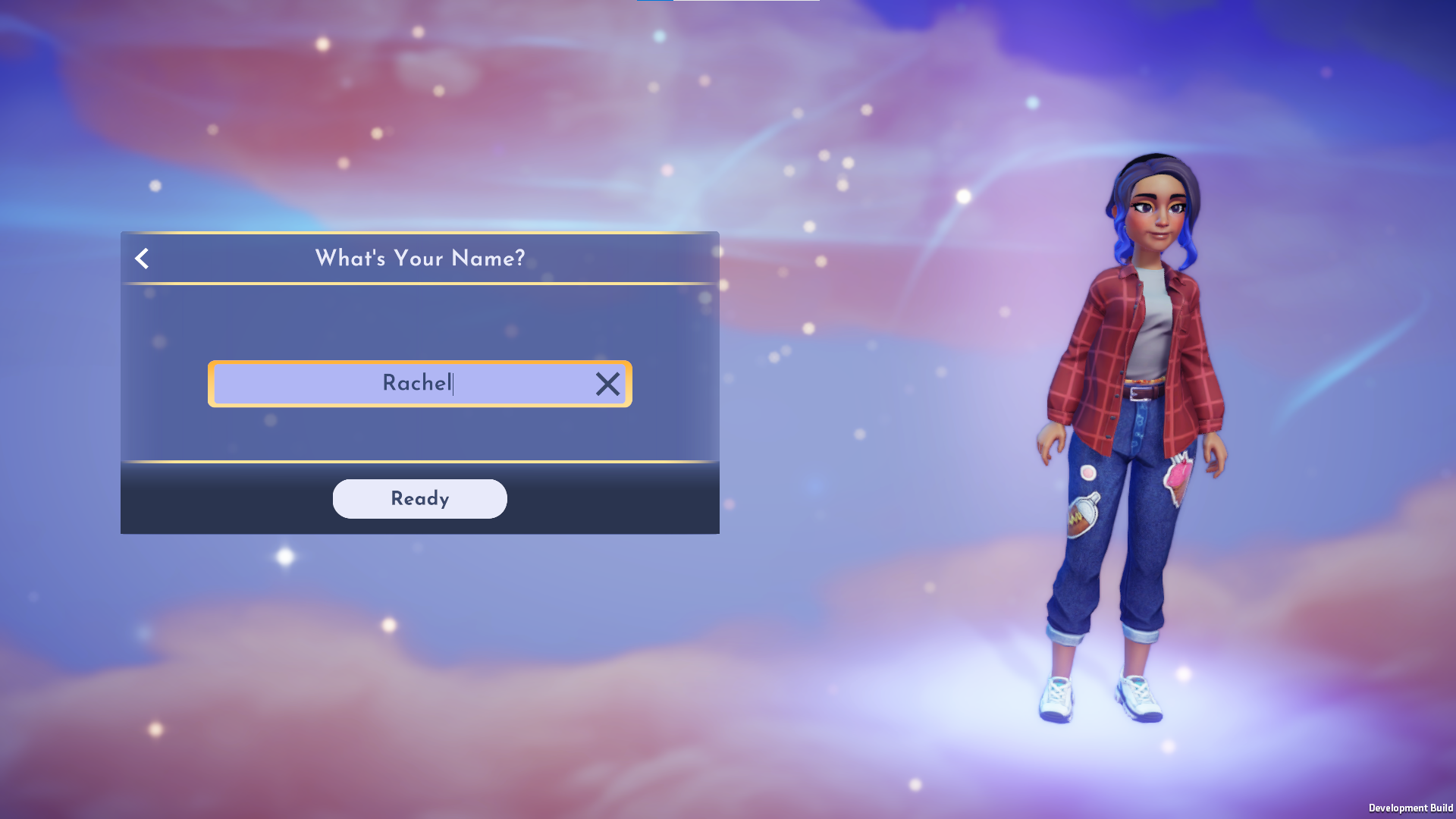


Should you wish to go through the Character Creation process natively in Disney Dreamlight Valley, and later decide to import your Avatar from the Avatar Designer Tool, you will be able to do so.
REMEMBER: Steam users will not be able to generate their Avatar Code from the Steam version of the Avatar Designer Tool after they have purchased the game. It is highly recommended to follow the previous steps to import their Avatar BEFORE purchasing the game.
PlayStation users will be able to follow the same steps below after Update 1 in Fall 2022.

To import your Avatar from the Avatar Designer Tool after you have created an Avatar in Disney Dreamlight Valley, head to the Settings Menu in-game, and select the Help tab via the left column. Then, select the Import Avatar button.
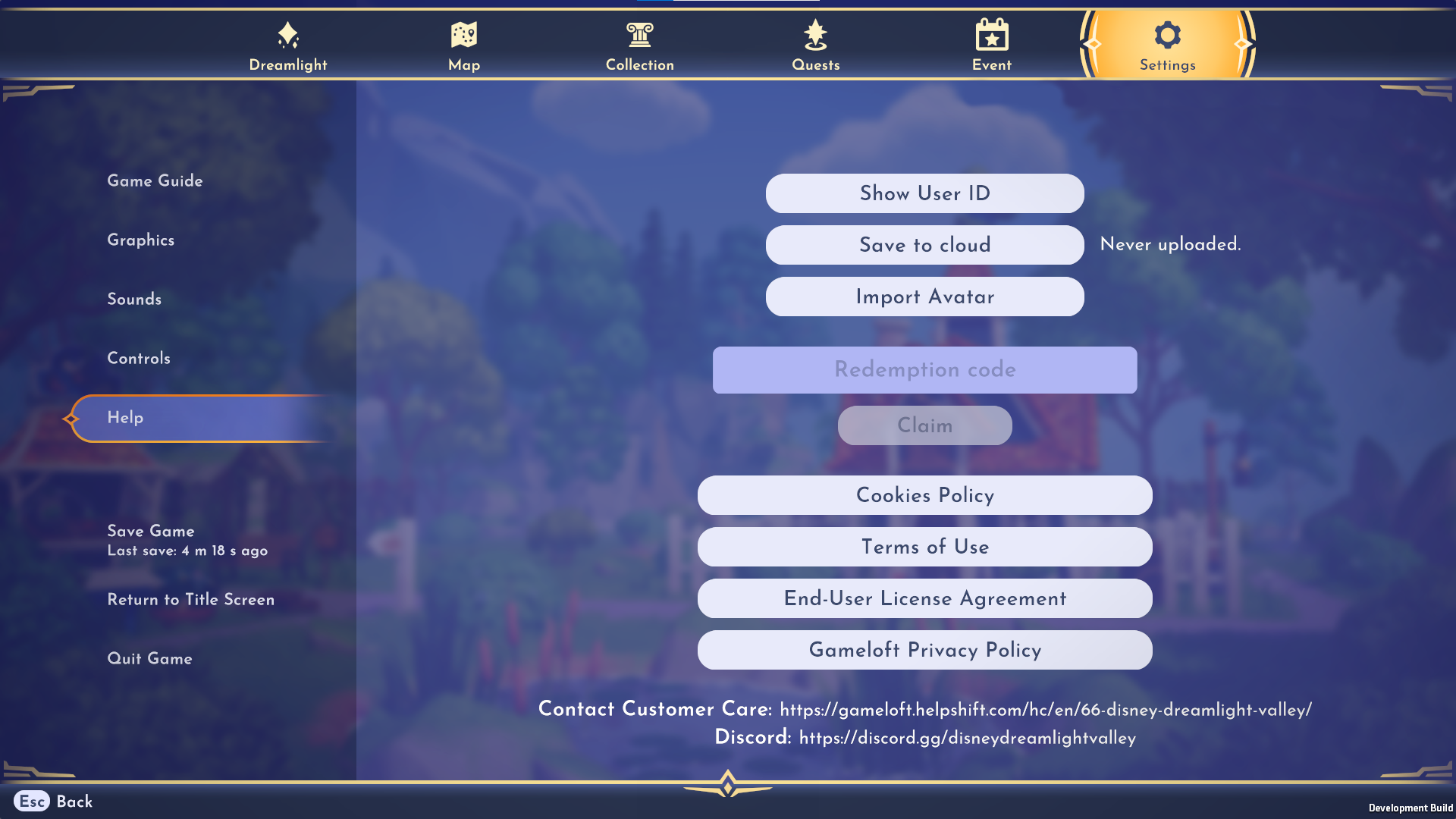


On the following pop up, enter your Avatar Code from the Avatar Designer Tool with letters in all caps, with no additional spaces.
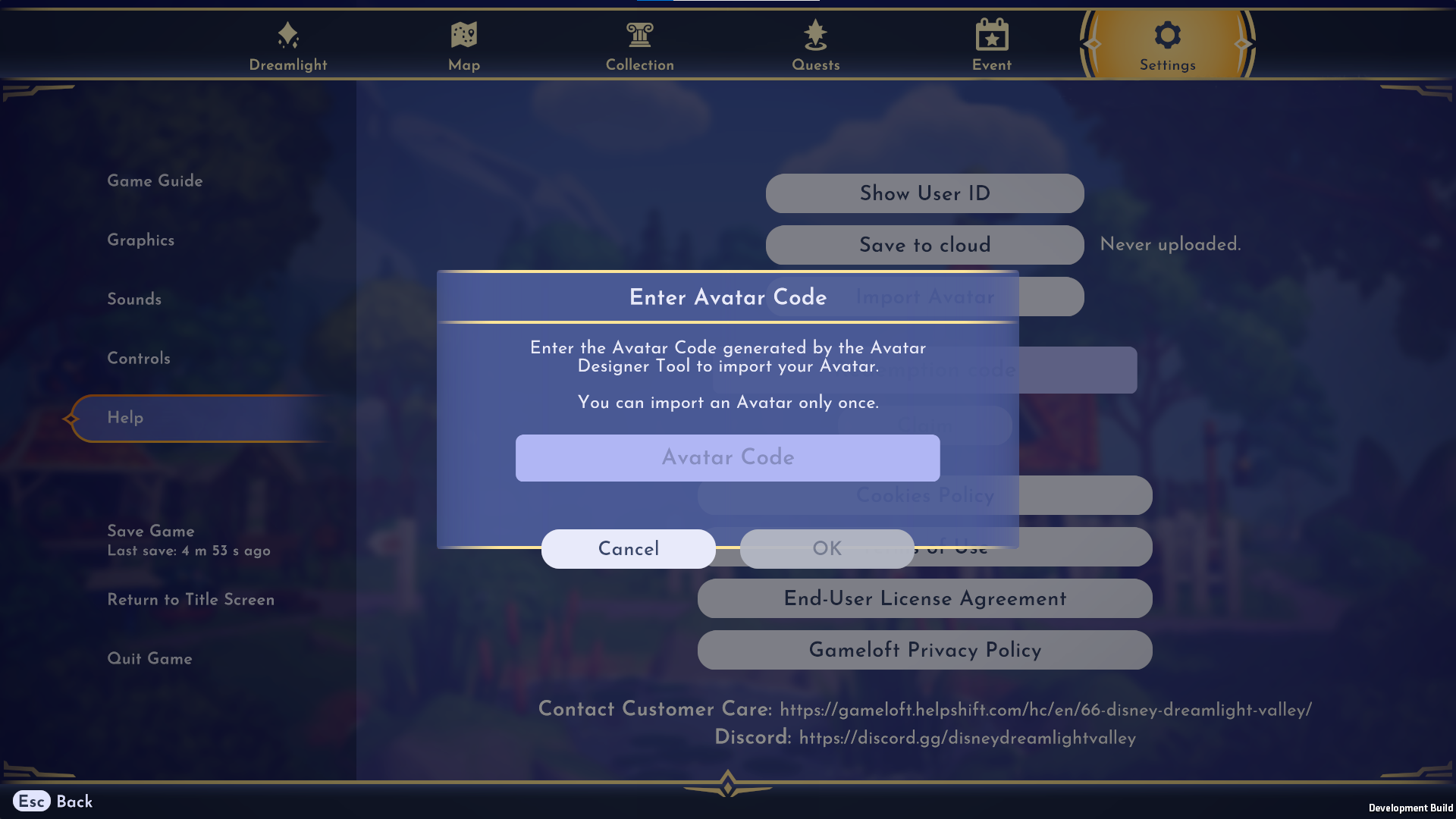


Select the OK button, and you will get the following dialogue:
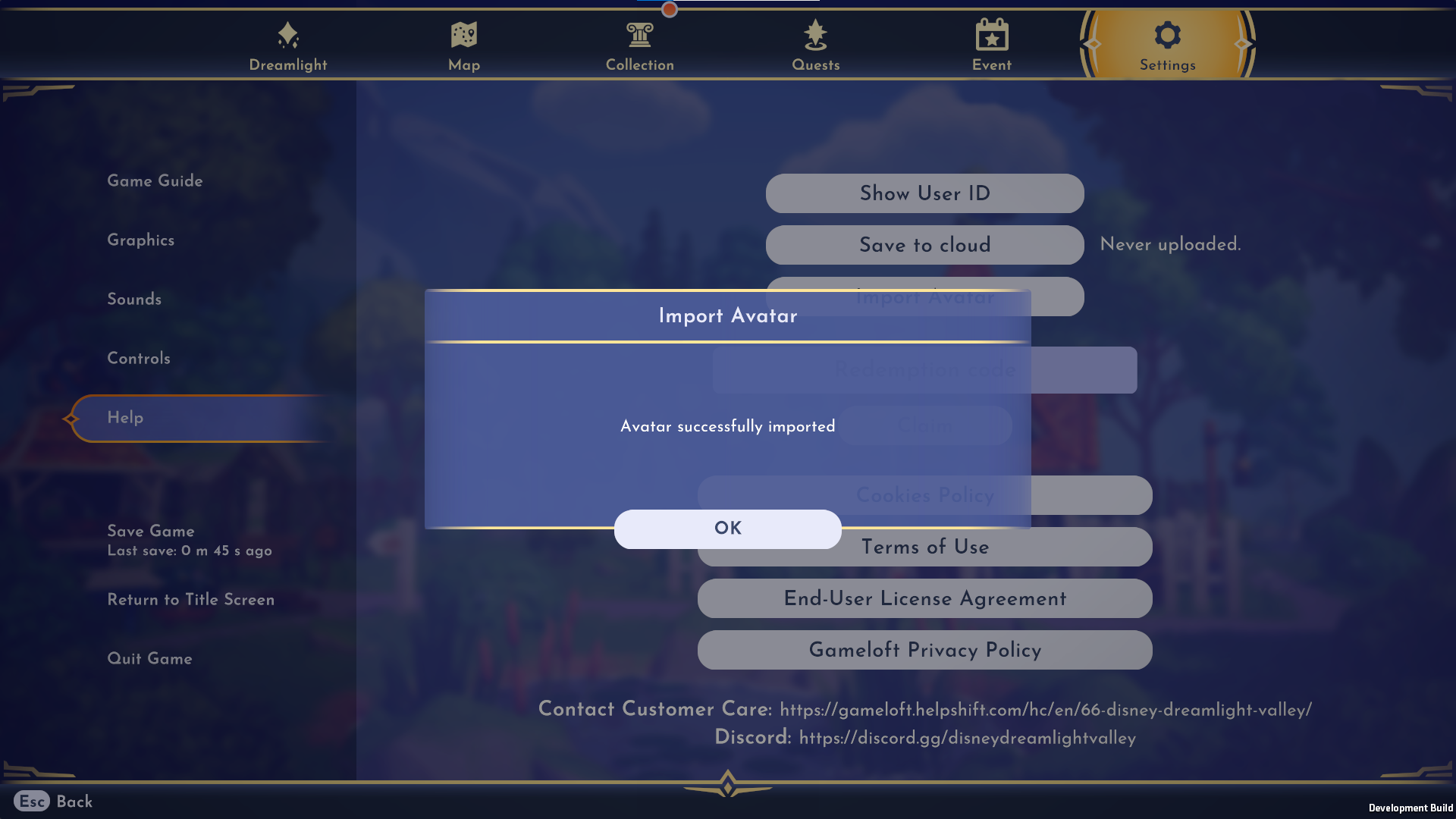

Once you have clicked okay, your in-game Avatar will be replaced with the one you designed in the Avatar Designer Tool. You will also be able to find your exclusive jersey in your wardrobe.

Here's when Disney Dreamlight Valley unlocks in your timezone


With Disney Dreamlight Valley's release almost upon us, you might be wondering exactly when you can jump into this magical sim. In a world shared by both Pixar and traditional Disney characters, you'll need to complete quests and overcome challenges and puzzles as you unlock different Realms in a bid to save the valley...
Read more.

Community Challenge Update

[h3]Hey Valley Villagers![/h3]

Last week was a huge week for Disney Dreamlight Valley – not only did we announce Founder’s Pack editions and pre-orders opened on some platforms, but we also launched the Avatar Designer Tool. At 37k selfies and counting, our team has been fueled by the creativity of our fans, and we cannot wait for you to have access to the full game on September 6th.

What’s more is the explosion of wishlists and followers on our social accounts! We are happy to announce that as of today, we are able to unlock two more goals of the Community Challenge:
  • 35k Instagram + Twitter followers collectively: We’ll create and gift an iconic Disney Dreamlight Valley Partner’s Statue to all players.
  • 200k total wishlists across all platforms: We’ll add a variety of Villager Skins so you can dress up your Valley Villagers.


We’ve already shared a sneak peek at the Heroic Armor Clothing that was unlocked with one of our previous goals, and our team will get started on concept art for the Disney Dreamlight Valley Partner’s Statue. We hope that we’ll be able to share this with you soon!

As for our unlocked wishlisting goal, we’re now committed to bringing Villager Skins to Disney Dreamlight Valley – all thanks to you! With our Early Access launch around the corner, it is worth noting once again that we are currently focused on core gameplay features, and these bonus features and items will be included later in the Early Access period and after the game officially launches in free-to-play.

With that, there is only one more goal to unlock! With pre-orders open on some platforms, we will also be including those numbers towards our final wishlisting goal. We are so close to unlocking Multiplayer Valley Visits together – will we be able to unlock this goal by September 6th?

I've already sunk over an hour into Disney Dreamlight Valley's free character creator


Gameloft has released a free, standalone version of the character creator for its take on a casual life sim. Disney Dreamlight Valley isn't out for a couple weeks, but if you make a character in the tool now, Gameloft says you can import them into the game when it releases on September 6. In the meantime, you can take selfies of your avatar...
Read more.

Disney Dreamlight Valley Selfie Promotion

[h2]Hey Valley Villagers![/h2]

…or should we say, fabulous designers? We’ve seen you sharing your selfies already, and have been blown away by your excitement for our recently released Disney Dreamlight Valley Avatar Designer Tool!

In celebration of the release of the Tool, and the upcoming release of the Early Access of Disney Dreamlight Valley on September 6th, we’re launching a Selfie Promotion! By entering, you can win 1 of 5 Grand Prizes that each include a physical Disney Dreamlight Valley Jersey, a 500 USD Disney Gift Card, and a key for Disney Dreamlight Valley Founder's Pack - Ultimate Edition on the platform of their choosing. Potential Grand Prize winners will be selected in a random drawing from among all eligible entries received and a panel of judges selected by Gameloft will review this selection in its sole discretion in order to choose 5 Grand Prize Winners, taking into account the following criteria: creativity and originality. Full contest rules and regulations can be found HERE.


To enter the contest, simply take a selfie in the Avatar Designer Tool and share it on Twitter or Instagram using the hashtags #DisneyDreamlightValley and #MyDreamlightStyle, or on the Disney Dreamlight Valley Discord in the Dreamlight Selfies channel.


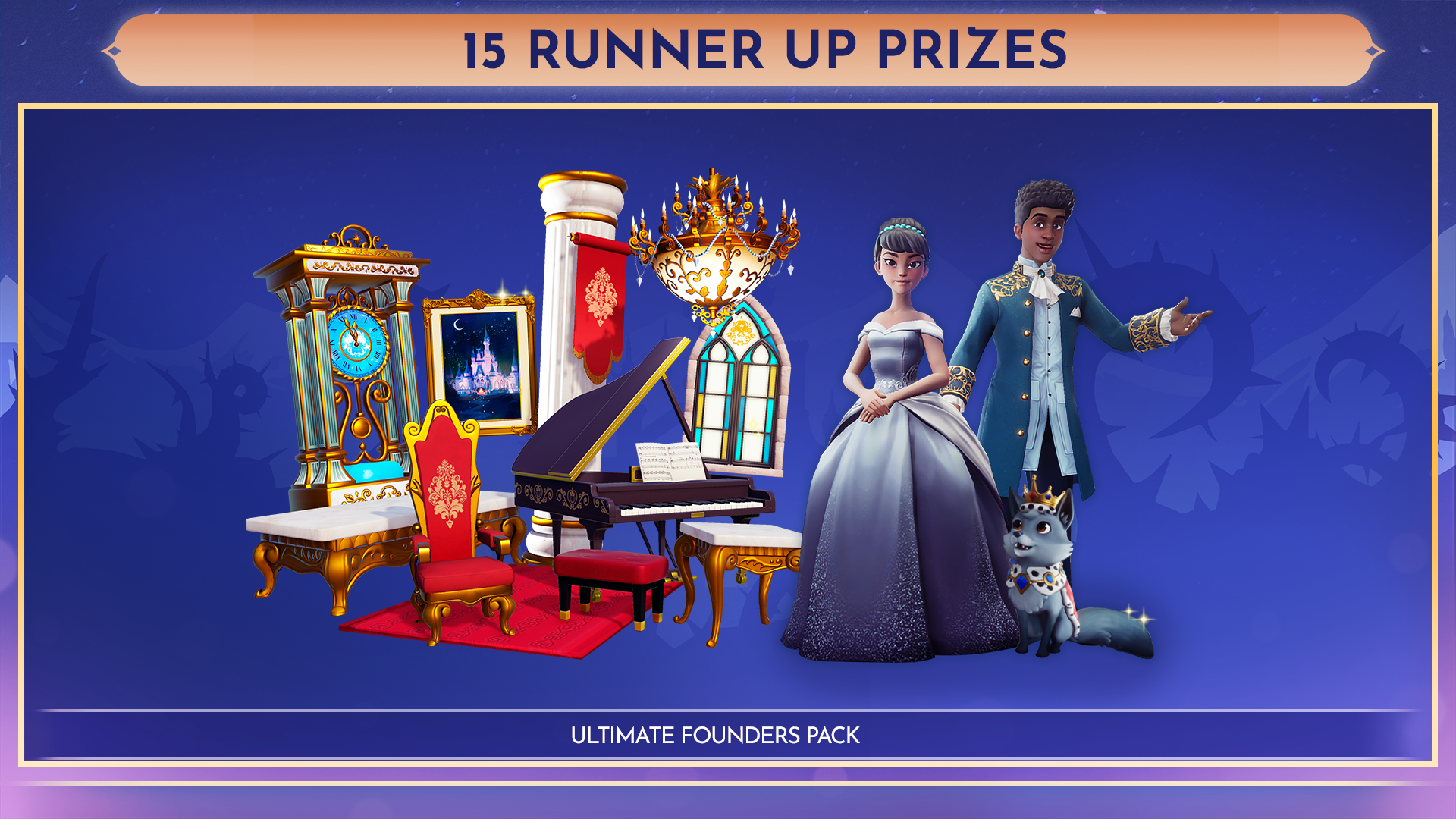
We also have 15 runner up prizes that can be won through completing tasks on Gleam! 15 random winners will receive a key for Disney Dreamlight Valley Founder's Pack - Ultimate Edition on the platform of their choosing. To enter, visit our contest link HERE.

[h2]How to take a Dreamlight Selfie[/h2]

https://store.steampowered.com/app/1401590

[h3]Option 1:[/h3]
  • Once you’ve created your Dream Avatar, from the Menu, visit the Camera section of the Avatar Designer Tool. -
  • Set up your selfie by using the various backgrounds and poses. When you’re happy, press ‘E’ on your keyboard to capture the image!
  • Press ‘R’ to Save and Share your creation via QR code – a QR code should then appear.
  • ANDROID: Scan the QR code with your mobile device’s camera and tap the link that appears – it will then save to your device, so you can share it with the world!
  • iOS: Scan the QR code with your mobile device’s camera and tap the link that appears – you can then tap and hold on the image to save it to your device.


[h3]Option 2:[/h3]
  • Once you’ve created your Dream Avatar, from the Menu, visit the Gallery section of the Avatar Designer Tool.
  • Hover over the selfie you’d like to share, and click the paper airplane icon – a QR code should then appear.
  • Scan the QR code with your mobile device – it will then save to your device, so you can share it with the world!


[h3]Option 3:[/h3]
  • Once you’ve created your Dream Avatar, from the Menu, visit the Camera section of the Avatar Designer Tool.
  • Set up your selfie by using the various backgrounds and poses. When you’re happy, press ‘E’ on your keyboard to capture the image!
  • Press ‘E’ once again to Save your creation to your device.
  • On your Windows computer, visit the file path: C:\Users\YOURDEVICENAMEHERE\AppData\LocalLow\Gameloft\DisneyDreamlightValley_DEMO_Steam
  • Please replace YOURDEVICENAMEHERE with the name of your device.
  • You may need to enable Hidden items to view this folder.
  • To do so, click the View Tab and check the Hidden Items box in Windows Explorer.
  • In this folder, you’ll find all of your saved Dreamlight Selfies – ready to share with the world!


[h2]DISCLAIMERS[/h2]

Like any game that allows for user-generated content, a small minority of players may desire to create inappropriate or offensive content. Please note that any entries featuring inappropriate or offensive content will be immediately disqualified from the contest. If you see content such as this being shared for Disney Dreamlight Valley, please make sure to report it according to that platform’s reporting system. Thanks for helping to keep the Disney Dreamlight Valley experience family friendly and we can’t wait to see what our awesome players create.

Contest will run August 23, 2022 and ends at 12:00AM EST on August 31, 2022. For full contest rules and regulations, see https://disneydreamlightvalley.com/news/selfie-promotion-official-rules.

No part of Disney Gift Card Services, Inc. or any of its affiliates are a partner in or a sponsor of this offer.