1. Rolling Line
  2. News

Rolling Line News

Custom main menus! v5.10


Now that the holiday season is done, I'm finally fully back to work on Rolling Line!
To kick things off for the year, here is a simple update that i've been wanting to add to the game for a while: the ability to set your own main menus in-game and share them on the Steam Workshop.

You can select as many different menu scenes as you want, and essentially make a shuffle list of different menus for the game to use each time it loads. These menus are literally just normal save files, which means they can contain everything from moving trains to mods and even custom audio!

By default, the game now also has a ton of built-in menus using the official maps already in the game (and even a few bonus ones).

[h2]Choosing menus[/h2]

You can select which main menu scenes to use in the "Pause menu -> gameplay -> main menu options -> select menus" menu.
This list will include all default built-in menus, any menus you've downloaded off the Steam Workshop, and any menus that you have made yourself.


[h2]Making your own custom menus[/h2]

A "main menu scene" is treated just like any other mod (like a train or prop), so you can create your own ones in the Modding Manager from the pause menu:


Set the category to "Main menu scenes", and then click "add new":


From here, you can choose the location where the player spawns and even set the size of the player, so you can make the player larger than they are usually in miniature mode.


When you click "set spawn point" you can walk around the map and see a preview of what the main menu will look like. Simply click the mouse to set the spawn point:


There is also an option to automatically delete all props beyond a chosen distance. This is useful for if you want to make a menu scene using a large map, but dont want to have to load the entire map each time.


[h2]Sharing on the Steam Workshop[/h2]

You can also upload your custom menu scenes to the workshop!
In the modding manager, simply click on your menu scene and choose "upload" from the popup list:


You can then find other people's main menu scene uploads in the "main menu scene" tag category on the Steam Workshop:


[h2]Other menu features[/h2]

This update also adds the option to change how the game loads on start-up. You can find this setting in the "Pause menu -> gameplay -> main menu options" menu:


When the game starts, you can either load the main menu, automatically resume your last save file, or even load an empty new game map.

[h2]Other fixes[/h2]

Along with the menu features, this update also includes a few fixes:
  • Fixed the snow mesh for the Challenger so that it matches the model properly
  • Fixed bug where loading a save file would sometimes include a fog effect on the loading screen
  • Blocked the ability to quickSave and quickLoad on the main menu
  • Fixed a broken mesh for one of the roof prop pieces


This update is just a quick one to kick things off for the year, but now that I'm fully back to work, the much more serious updates can continue.
I've got tons of big plans for this year, so keep an eye out!

In the meantime, I hope you all have fun with these custom menus!
Christmas, fixes, features & news v5.9


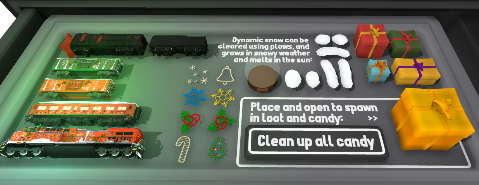
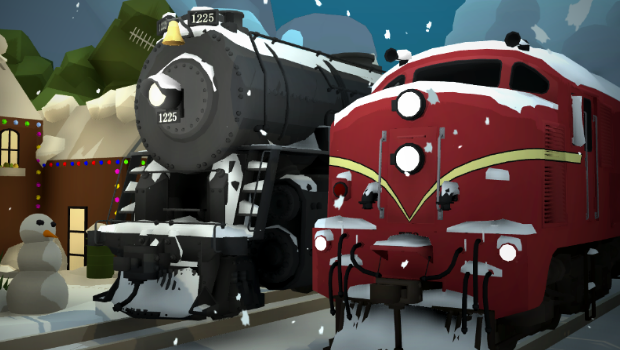
It's time for Christmas! This update adds a bunch of new features (like more advanced signal options), lots of bug fixes, and of course brings back the Christmas coat of paint for the game.

And that also means all of Rolling Line's previous Christmasy features get to resurface!
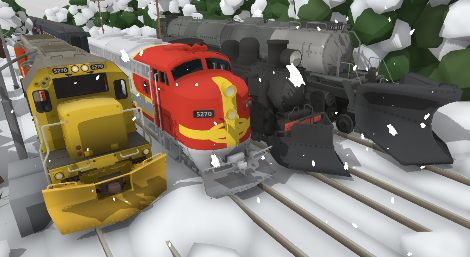
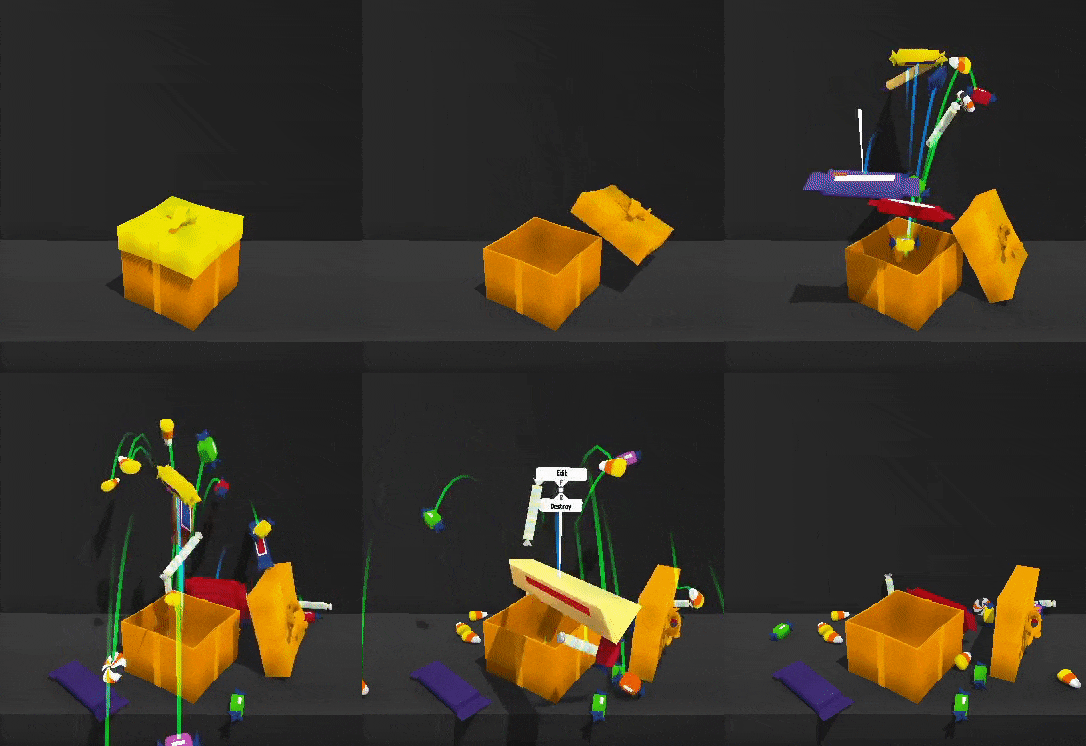
Some of the previous year's themed updates added things like:

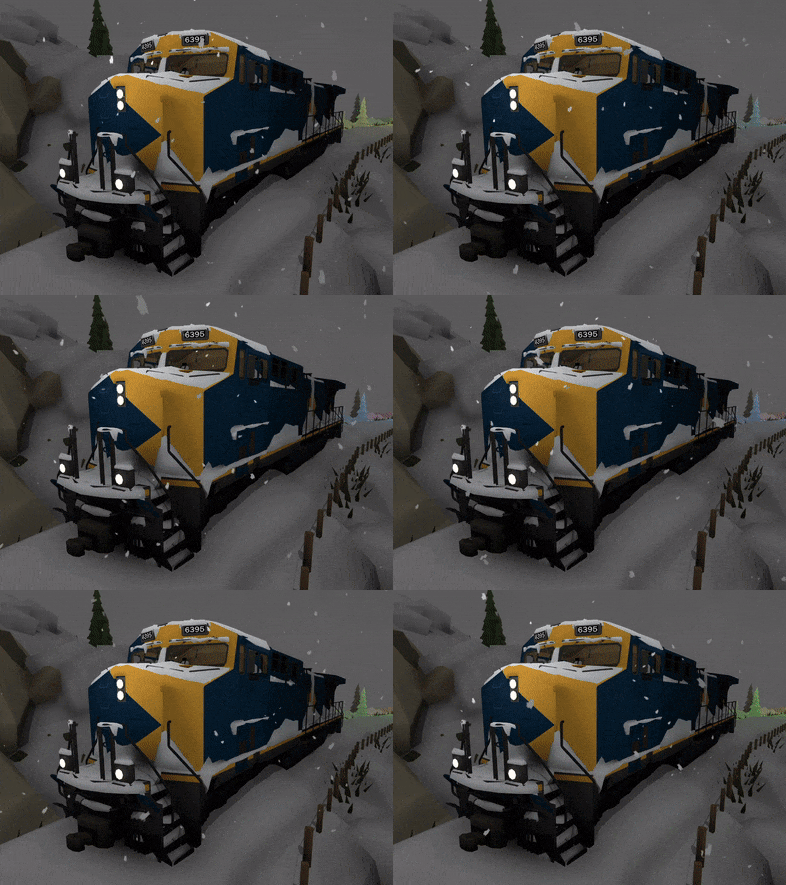
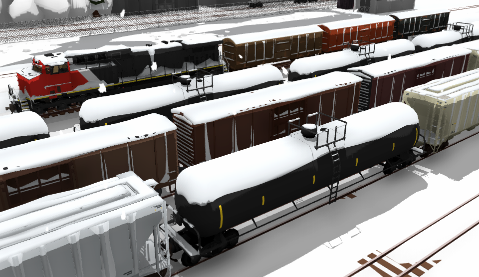
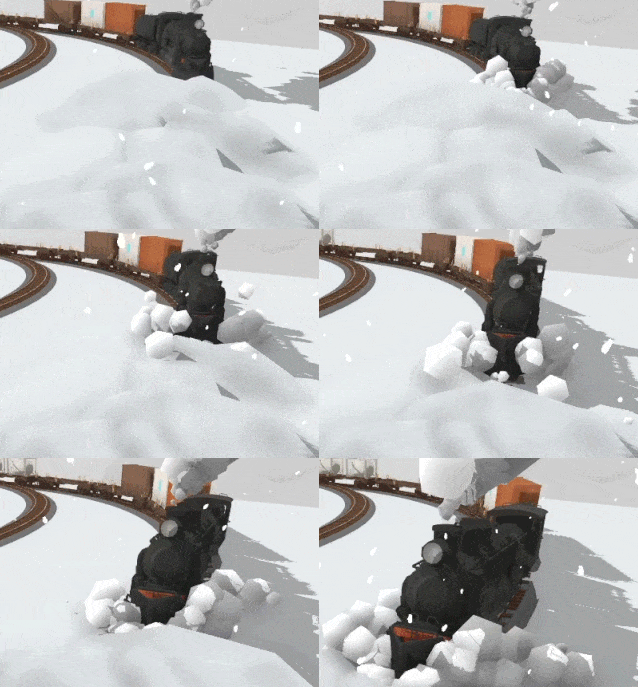
[h2]Snow cover effects for trains:[/h2]


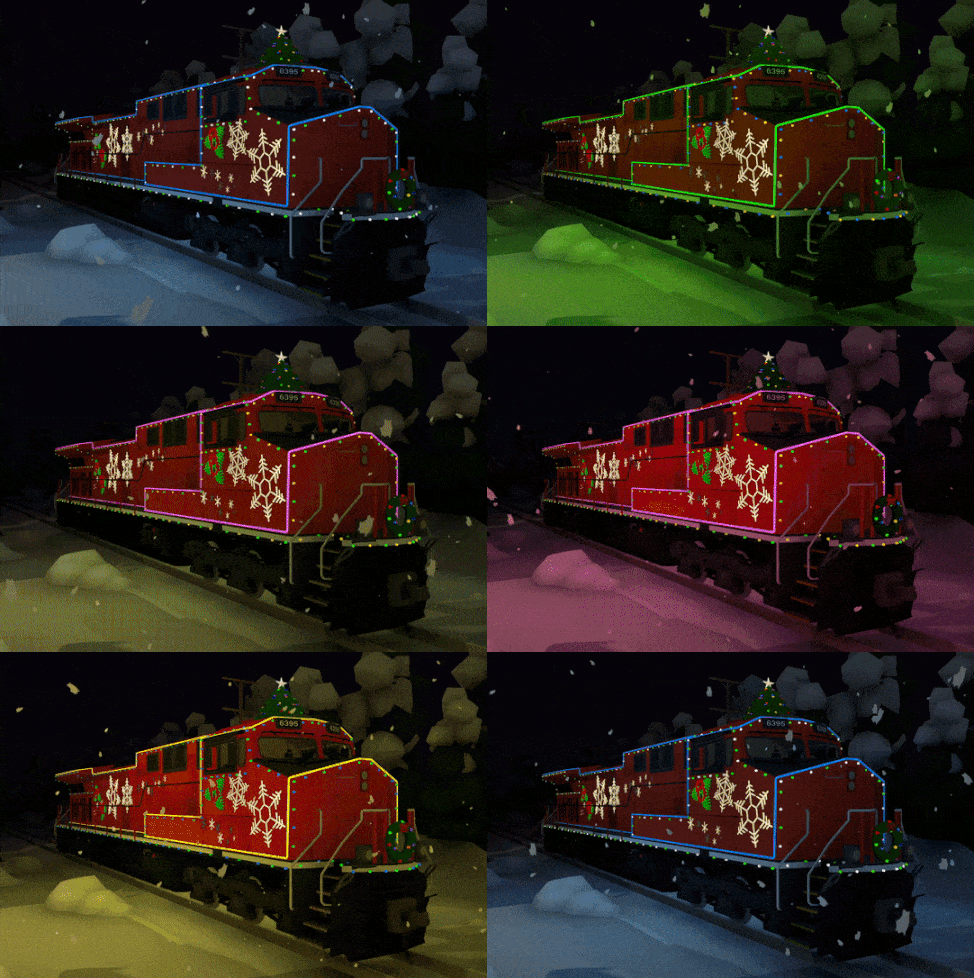
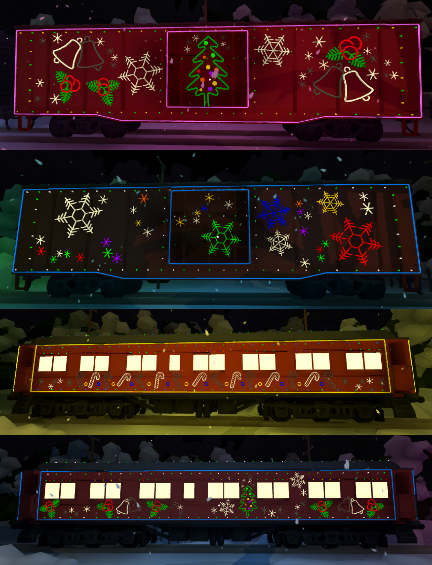
[h2]The Canadian "Christmas train":[/h2]


[h2]Rotary plow:[/h2]


[h2]Snow plows and snowy tracks:[/h2]


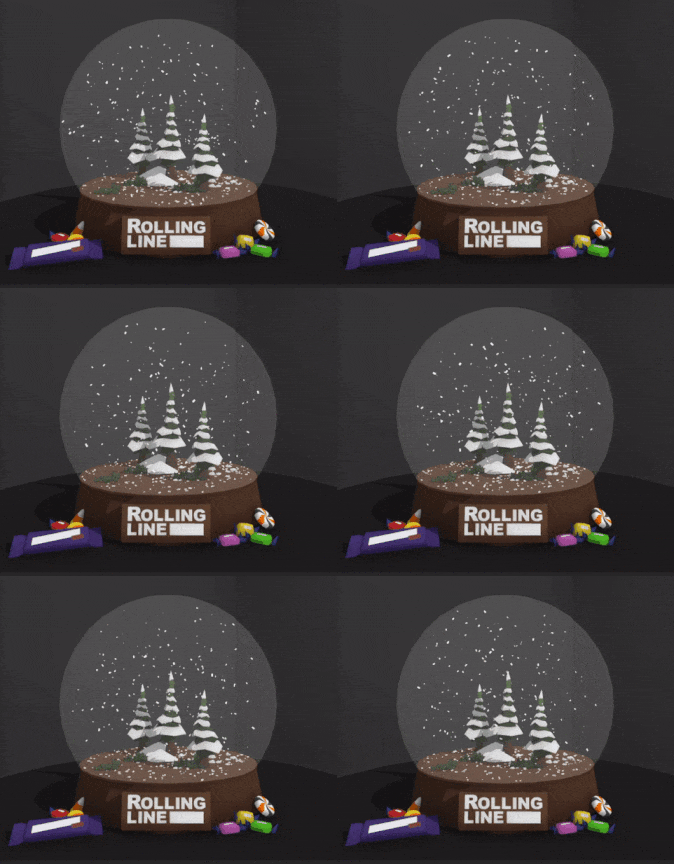
[h2]Snow globes:[/h2]


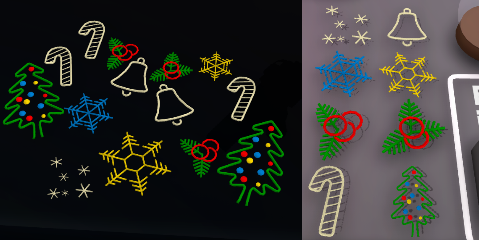
[h2]Christmas props:[/h2]


Unfortunately this year I have been very busy over the last month (travelling overseas!) so there won't be a new Christmas themed update this year, but this update does include a bunch of fixes & features, including some highly requested improvements to Signals!

[h2]New signal features[/h2]

You now have several new options for setting up signals!
You can place custom "bounds boxes" which allow for signals to be triggered by trains that are not on the track directly ahead. This means you can make working diamond crossings where trains will stop to allow for other trains to cross:


You can also now set a different "source track" point for AI trains to detect the signal. This means you can have the signal checking for trains on one track, and have trains respond to it on another track. This is very useful for making sidings, where trains need to wait for the main line to be clear before moving:


In the above example, the signal on the siding is actually checking if the main line is clear, not the track directly ahead of the siding. But the "source track" that the AI train is waiting at is still on the siding.

Meanwhile, the main line signal is just checking the track directly ahead.

This means that when the main line is clear, the train waiting on the main line will get a green signal first, then the siding signal will only turn green once the line ahead is fully clear.


You can access all these new options on the signal edit pop-up menu:


[h2]New control bindings[/h2]

This update adds a few new control bindings, firstly, you can now create a custom binding to toggle AI-auto-switch on the current driving train. This is useful for when you are controlling modded trains which have no buttons inside the cab:


There is also now a new binding to toggle "pause time".
Previously, there was an option to use the pause button to instead pause time (rather than opening the menu) or you could also choose to make the pause button create a spray.

Since this option was quite confusing (people would often accidentally change their pause button to do different things and not understand what had happened) I decided to just remove this setting for PC and instead give the option to bind controls for each of these options individually.

So this means there are now dedicated bindings for "go to pause menu", "pause time" and "place spray" in the controls menu:


[h2]System to detect bugged controller input [/h2]

There is now a system in place to detect broken joypad input.
tons of people have run into issues where some unintended joypad input has caused the screen to spin and makes it very difficult to disable the joypad afterwards. Usually this is caused by something like a flight-stick being plugged in and unused, or a broken controller.

So basically the game now keeps track of input (only during the main menu stage) to check if identical repeated input is happening, e.g. if a joystick is stuck fully to the left/right and spinning the screen.
If input is frozen on an identical value for more than 4 seconds, it will show this popup:


[h2]Halloween menu map[/h2]

A bit of an unrelated feature, you can now play the halloween main menu scene as a map included in the "New game -> Mini maps" list:


[h2]Other fixes[/h2]

This update also includes:
  • Fixed bug where pressing ESC while editing a text box while inside a 2D menu would cause the text box to get stuck on the screen.
  • Fixed bug where held bounds-boxes would be disabled when changing items in your inventory.
  • Fixed errors caused by having an empty save file included in your local saves list.
  • Fixed issue where signals taken from the drawer would default to having zero as their red range.
  • Fixed bug where the signal popup menu was not removed when the signal prop is deleted.
  • Fixed specific crash from loading broken mod files.
  • Cleaned up the post-processing options in the pause menu and split them into multiple menus.
  • Fixed bug where the tooltip text for save file lists were not visible in 2D menus.
  • Fixed issue with fog affecting loading screens in some niche situations.
  • Fixed bug where pressing ESC during thumbnail capture would cause problems.
  • There is now an on-screen help message about enabling/disabling track side-snapping (just like the message that shows up when track snapping is disabled).
  • Fixed bug preventing one of the Weka Pass map easter eggs from working correctly.


[h2]Southeast Asia trip![/h2]

I've just spent the last month overseas on a trip to Southeast Asia! (Vietnam, Cambodia & Thailand).
It's the first time I've been overseas since visiting Brazil (4 years ago) which lead to the Paranapiacaba map.
This was an incredible experience, and included some places which would make from some really amazing Rolling Line maps, including places like the ancient temples of Angkor Wat, Thai-Burma "death railway", urban railways in Ho Chi Minh City, and several train trips through rural Thailand. I really hope to make something surrounding these locations in-game, but there will be more news on that in the future.

Here are some highlight photos:


Since I was away overseas for so long, and I'm also quite busy of Christmas, updates will be a bit sparse until after January when I can get back to work properly.
But don't worry, i have HUGE plans for 2024!
After 2023 having some quite experimental updates (like circuitry) I'm going back to the game's roots, focusing on trains, operations, freight and maps. But there will be more information on that in the future.

But to give you a hint... it might involve logging with Shay's in the Sierra mountains ːsteamthumbsupː

In the meantime, have a lovely Christmas and keep an eye out for future updates in 2024!

Adventure Map Jam favourites!


The Adventure map jam is complete!

Thank you to everyone who took part! There's a whole bunch of maps to go and try on the workshop now, and you can view them all by clicking on the "adventure map jam" feature on the Steam Workshop, or choosing it from the "competitions" drop down list of tags.


From here you can also view all the previous competitions & events that Rolling Line has had!
Just for fun, here's a compilation of all the logo's from the previous events (Since I really love making these):


[h2]Adventure map jam favourites![/h2]

Here are a bunch of my personal favourite stand-out entries for the event. There were lots of great entries that didn't make it on to this list too, so don't worry if your map wasn't listed here. As with all Rolling Line events, I personally play every single entry and give them all a try!

(these favourites listed are not in any specific order)


Thank you everyone who took part!
I recommend going on the Steam Workshop yourself and trying these maps out, and have a look at all the entries too.

And in other news...

[h2]I'm away from work for the month of November [/h2]
For the first time in about 4 years (when I went to Brazil) I'm going to be going overseas!
I'm heading to Southeast Asia, specifically Vietnam, Cambodia & Thailand. And of course this means that when I'm back I'll be making some updates themed around those locations! There will be more info on this coming in the future.

This means it will be very tricky for me to keep track of what's going on here on Steam, so please bear with me as bug reports and questions will likely take quite a long time for me to catch up on.

[h2]Other fixes & features[/h2]

This update also includes a bunch of bug fixes that I've added since the last update, these are:
  • Fixed various issues with 2D menus getting stuck or not disappearing
  • Fixed a bug where the "alternate flash" option for lights on prop mods was not working
  • The magazine rack can no longer be triggered by remote trigger activators
  • The "-halflife" launch tag (which forces all textures to be loaded with hard-pixel filtering) now works correctly again
  • Fixed annoying issue where saving the game from within a 2D menu would snap you back to the 3D menu afterwards
  • This update also removes the Adventure Map Jam option for uploading maps, since the event is now complete

And that's everything!
I hope everyone had fun during the Adventure Map Jam!

2D menus for PC! v5.8


A very highly requested feature: proper 2D menus for the PC version!
This means instead of using 3D popup menus that are in the game world, you can now interact with menus with your mouse on the screen:


There is always still the option to switch back to 3D menus, which is very useful for editing things like particles and light sources, where you want to be able to see the changes you are making in 3D:


You can also use the pause menu in 2D!


If you are using a gamepad controller or are in VR then these options are disabled.

You can also go into the "pause menu -> PC options -> interface options" menu to change some options for the new 2D interface:
  • Enable 2D menus - Disable this option to completely remove 2D menus. The "switch to 2D" button on prop menus will be hidden and menus will always open in 3D, basically the same as things were before this update.
  • Use 2D on prop edit menus - Change whether prop popup menus open in 3D or 2D by default.
  • Use 2D on pause menu - The same effect, but for the pause menu.

[h2]New control bindings for pausing[/h2]

Since "opening the 2D menu" and "teleporting to the location of the menu" are now two different things, there are new control bindings for each. You can edit these bindings in the "pause menu -> controls -> interaction" menu:


By default, pressing Escape will open the 2D menu (and keep the player in place) but if you have 2D menus disabled then it will teleport you to the corner of the room as normal.
Meanwhile, pressing middle-mouse will always teleport you to the location of the menu, regardless of whether 2D menus are enabled or not.

[h2]Signal menu improvements[/h2]

This update also makes some changes to the signal edit menu. The red/orange range display line is now much more accurate and clearly shows exactly where signals will display red/orange.
You can also now use buttons for both +1 and +10 when adjusting the range, which makes increasing the range to large amounts SO much easier.
The way signal range is detected was also slightly adjusted, any newly placed or edited signals will include the source track piece in the red range (they didn't before). Setting either the red or orange range to zero will also now work correctly, meaning a signal can be set up to only show orange and never show red.


[h2]VR binding overlap options[/h2]

There are some new settings for VR which allow you to specify whether you're using a custom control scheme that overlaps certain controls.
By default, only the Vive controller has the limitation of both the "teleport current scale" and "teleport change scale" overlapping with the up/down context options (which means that you can't press both at the same time). Meanwhile all other VR controllers only have the "teleport current scale" overlap, while the "teleport change scale" button is separate.

If you are using custom SteamVR bindings though then this may change! So the game now has options for you to manually specify whether these bindings overlap.

The benefit of this new system is that the default control scheme for most VR controllers now lets you use "change scale teleport" while an item is in your hand, which is HUGELY better for VR players!

[h2]Other fixes & features[/h2]
This update also includes:
  • There is now a "clear text" button when using a text input window.
  • Collision for the particle emitter and light source props is now disabled while the menu is open, this solves the issue where trying to open the edit menu in miniature mode would be blocked by the props collision box.
  • Fixed bug where in VR the player could click on train/player triggers when within their detection range, this was caused by a collision layering issue.
  • Added collision for bridge railings track style.
  • The floating text popup box now glows in the dark.
  • There is now a note about using copy-paste when editing large amounts of text.
  • Fixed issue with the golden trains easter egg.
  • Fixed bug where skybox custom colors were not updating correctly when loading a save file.


[h2]The Adventure Map Jam continues! [/h2]

There are still 10 more days left before the Adventure Map Jam ends (on the 16th) and there are already a bunch of entries you can play on the Steam Workshop!
To view entries so far, simply find the "competitions" drop down list on the workshop front page and choose the event from the list:


Remember you can make as many entires as you like, it doesn't need to be one-per-person. You can even work together with other people.
I'll be announcing a list of my personal favourites at the end of the event, and I can't wait to see all the final entries. Have fun!

Adventure map jam! v5.7


It's time for a map jam!
With all of the recent updates, there's now a whole new world of map ideas that are possible to make.

With player physics (gravity/jumping/collision) you can now make platforming maps and exploration themed maps... With new prop modding features you can make things like hand-held torches, maps & notes for the player to read, and all kinds of cool effects with particles, audio, animation and lights... With the new automation tools you can make things like locked doors, keys, and interactive gameplay... And of course with electronics and circuitry you can make pretty much anything imaginable!

This map jam is themed around making maps that have "gameplay" to them in some way, and that topic is very, very broad. This is a very casual event and there are no rules, and submissions can be either big or small, simple or complex, don't worry about it!
Just like previous events, I highly recommend you give it a try even if you just want to make something simple and quick. These layout jams are a ton of fun to take part in, and the main goal is creativity!

There are no prizes, but as usual I'll make a list of highlights and my personal favourite entires at the end of the event. The jam runs from now (September 21st) till October 16th, so it's longer than the usual jam events.

To enter your map into the event, simply tick the "Adventure map jam entry" option when uploading to the workshop:


Want some map ideas? How about:
  • A maze, either 2D or full of 3D elements like layers and bridges.
  • A platforming challenge, like rooftop parkour or a 3D-platoformer style level.
  • A horror-themed map, where it's pitch black and you need a torch to look around.
  • Tell a story, use text and images to describe the historical events of a railway.
  • Use trains to make a puzzle, like directing trains through a yard, or finding your way through a complex maze of track junctions.
  • Make a world designed for exploration, where the player walks around in miniature mode and has things to find in the map.
  • Use locked doors to make a room-escape style puzzle.
  • Use train AI to make something interesting out of train movement.
  • Create some mods to make a parody of another video game.
  • Use automation tools to create a light show.
  • Change the skybox and sun colours to make a surrealist world to explore.
  • Use harsh weather and low-visibility to make a survival-exploration map.
  • Give some basic electronics a try, and make some simple circuits.
  • Or get more advanced and use the circuitry to make something crazy!

This theme of "gameplay" is very broad, so feel free to make anything you like. Even just a normal map that is fun to run around in miniature mode still counts!

It's been ages since the last Rolling Line map event, so i'm really excited to see the kind of maps people will make. Have fun!

[h2]New map: Cuba Street[/h2]

To kick off this map jam, I've made my own entry.
This map uses modding to create a bunch of props that use a pixel-graphics art style. It's set in Wellington's Cuba Street, a famous little street here in Wellington with lots of colourful buildings and art.


I originally made these 3D art assets as part of a weekend game-jam recently, so I decided to import them into Rolling Line as mods and make a full map out of them!

This map features some platforming, but the main gameplay is a mini-game to catch rats. I've used circuitry and automation tools to create some basic logic for "catching" rats, as well as a scoreboard.


If you look under the table, you can see the circuitry that makes this gameplay work:


You can find this new map in "New game -> mini maps -> Cuba Street"


Here are some photos of the real-world Cuba Street, you can probably spot the resemblance!


[h2]Other features in this update[/h2]

[h3]Torch props[/h3]
In the "Room -> tools" drawer you can now find a couple of hand-held torches (a flashlight and a flame torch). These are great for adventure maps!


[h3]NOT gates[/h3]

There is now a NOT logic gate, which always outputs the opposite of its input:


[h3]Wire condenser[/h3]

This is the opposite of a wire splitter, it takes multiple wire inputs and if any of them are true then the output is true (it's just like using OR gates):


[h3]New LED types[/h3]

There's also now a bunch of different LED types, like one with just the light and no circuit board, and a square panel version:


[h3]Change height with tools in hand[/h3]

I've added a new key binding which you can hold to use the scroll wheel for player height instead of tool menu up-down. You can change this in the controls menu. By default shift + scroll wheel will now change the player height even when a tool is in your hand:


And a whole bunch of other fixes and minor features:
  • Fixed issues with the train sensor prop, it no longer flicks on/off if trains are moving slowly.
  • Fixed train sensors not working on very low frame rates.
  • Fixed issues with signals and turnouts now being updated correctly by the remote state activator.
  • Train AI now properly responds to signals which are set by remote state activators.
  • Train cab buttons can no longer be clicked by remote trigger activators.
  • Changed the backlight screen material for all tools (edit tool, group tool, etc).
  • Logic gates now store their current state in the save file, which helps keep complex circuits accurate when loading from saves.
  • Fixed issues with logic gates not receiving inputs or giving outputs from passwords correctly.
  • Logic gates now send out a password trigger when they become true, if no wire is connected.
  • Wire connections are now removed when a circuit piece is moved with the transform edit tool.
  • Fixed minor bug with player sensor popup UI display.
  • Fixed minor bug where the box collision display for prop mods would not disappear when exiting the menu if a mesh collision is chosen.


And that's everything!
I'm really excited for this map jam, and I can't wait to see the kind of maps people will make!