1. Cosmoteer: Starship Architect & Commander
  2. News

Cosmoteer: Starship Architect & Commander News

Cosmoteer 0.15.0 - Crew Squads, Roles, and Priority Customization

Cosmoteer update 0.15.0 is now available for direct download and auto-update via Steam! This is a major update that adds crew squads, roles, and job priority customization. Here's how it works:

Crew are organized into "squads" of 2 or 6, where every crew bunk or quarters is a squad. If you want, you can manually move individual crew between squads by going into the crew U.I., selecting the "CREW" tab, selecting the individual crew, and right-clicking on the bunk or quarters you want to move them to.
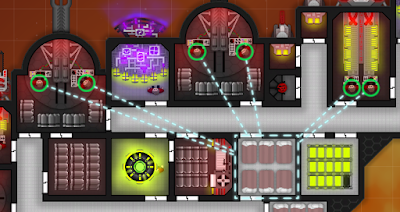


Your ship also has one or more "roles" for its crew. Each squad is assigned a role for the entire squad, which you can do in the crew U.I. in the "ROLES" tab by selecting the bunk/quarters and then clicking the button for the desired role. Each role can have a custom name, shirt color (which is also the color of their bedsheets!), and set of job priorities. You can create up to 20 roles per ship.
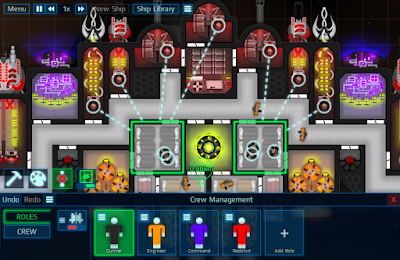


To customize the name, color, or job priorities for a role, click the little "hamburger" menu button in the corner of the big role button and select "Edit Role". This will open up a window allowing you to customize the role. To customize the role's job priorities, click on the "Job Priorities" tab, which will allow you to set the priority of each job for each ship part. Each job can be set to a priority between 1 and 10, where a higher priority number will take precedence over a lower priority number (i.e., crew will do a priority 10 job before doing a priority 1 job). You can also click the "no" sign to disable that job completely for that role, so crew with that role will never do that job.


As a side-effect of switching to this new customizable priority system, the A.I. logic that controls the crew has actually been significantly simplified. Before, the A.I. would make complicated calculations to determine the priority of a given task, taking into consideration things like how much power/ammo a part already had. But that's all gone. Now, if a part needs 3 batteries, 3 "supply battery" jobs will be created, each with the same 1-10 priority (whatever priority you set that job to). Hopefully this change should make it easier to understand why your crew are doing the things that they are doing.

You can read about all the other improvements and fixes in this update in the changelog.
Cosmoteer 0.14.15 - Bug Fixes & Balance Tweaks

Cosmoteer update 0.14.14 is now available for direct download and auto-update via Steam. This is a small update that fixes a handful of bugs and tweaks Tractor Beam balance.

Tractor Beams now take 5 seconds to ramp up to full power after firing, including when switching from pull to push or vice-versa. They also now rotate much more slowly, making it a lot more difficult to stay focused on a moving target without shutting down. These changes were made because Tractor Beams had proven too powerful at spinning and effectively disabling enemy ships in multiplayer.

You can read about all the changes and fixes in the changelog

Cosmoteer 0.14.14 - "Aim Assist" + Download Free on Steam!

Cosmoteer update 0.14.14 is now available for direct download and, for the first time ever, can also be downloaded on Steam, still for free! This is a small update that adds an optional "Aim Assist" to Direct Control Mode and fixes a handful of bugs.

What's New


"Aim Assist" in Direct Control Mode


The recent 0.14.12 update added the much-requested "Direct Control Mode" that allows players to manually fly ships with the keyboard and aim & fire weapons using the mouse. While the ability to fly your ship with the keyboard was well-received, many players found aiming weapons using the mouse to be too difficult, putting them at a big disadvantage.

This latest update seeks to address that problem by adding an "Aim Assist" feature. Basically, your weapons will automatically try to figure out what you're aiming at and target that thing while taking into consideration projectile speed and the target's velocity, just like they already do when you're not using Direct Control Mode.

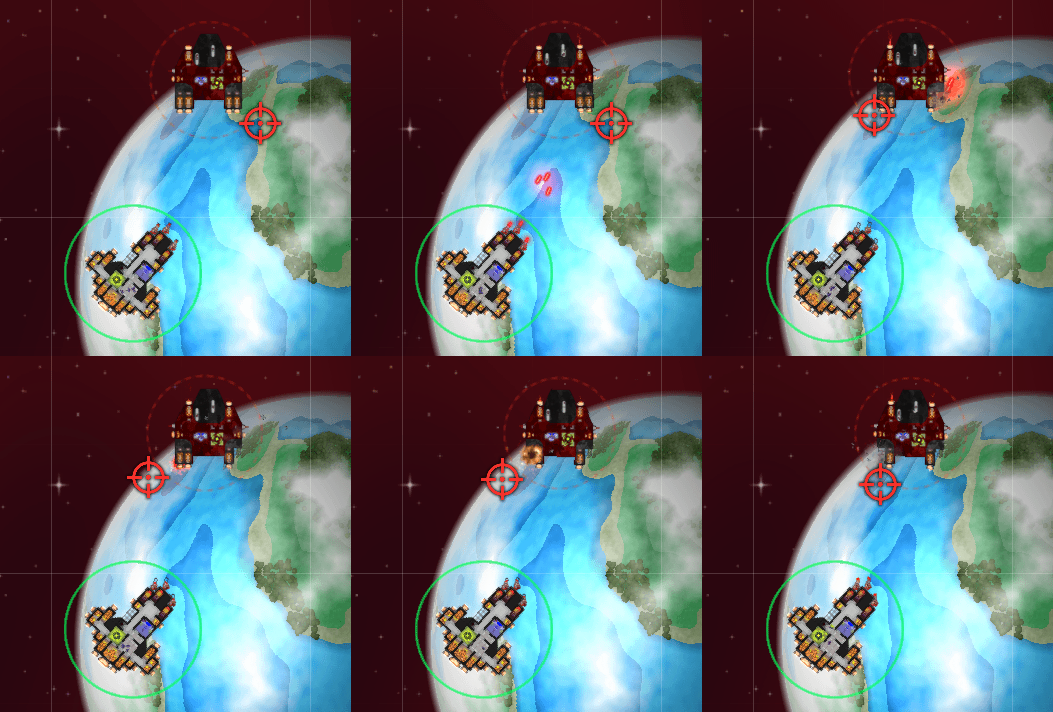
In this GIF, we can see how the laser blasters are automatically targeting the parts of the enemy ship closest to the mouse cursor instead of firing directly at the cursor's location:


Also note the new faint-red dotted circle around the enemy ship. This indicates the ship that your weapons will aim at and is typically the ship closest to your mouse cursor. (Friendly ships will have a gray dotted circle, indicating that they are friendly and cannot be hurt.) You can also press the Alt key to lock-on to a ship, making your weapons always target that ship even if another ship is closer. Locking-on to a friendly ship will also turn on "friendly fire" against it, allowing your weapons to target and damage the friendly ship.

Aim Assist is an optional feature that is turned on by default but can be turned off in the gameplay settings.

Steam Downloads, Updates, and Cloud


By popular demand, Cosmoteer can now be downloaded and updated using Steam, the most popular digital distribution platform for PC games! To download Cosmoteer on Steam, head over to Cosmoteer's Steam page and click the "Download Demo" button on the right hand side:


(Even though it's called a "Demo", it's really the full version of Cosmoteer and is not limited in any way. Making it a demo was simply the best option for allowing the game to be downloaded on Steam without giving away the paid version for free. Please note that the demo will likely be removed before Cosmoteer launches as a paid game.)

If you don't want to download Cosmoteer using Steam, that's fine, you can still download the "standalone" version like normal. But there are a couple big advantages to downloading Cosmoteer on Steam:

First, Steam will automatically keep Cosmoteer updated, and Steam's smart patching software will only download the portions of the game that have changed instead of having to download the whole game with every update, saving you time and bandwidth.

And second, Cosmoteer supports the Steam Cloud for saved game and saved ship files, automatically backing up your games and ships and syncing them across all your computers. You can store up to a whopping 10GB of saved games and ships on the Steam Cloud. That's about 60,000 saved ship files!

Cosmoteer will display how much space you're using when saving or loading a saved game or ship:


... And more!


This update also has a handful of other fixes and improvements, which you can read about in the changelog.

Cosmoteer 0.14.13 - Quality of Life Improvements

Cosmoteer update 0.14.13 is now available for download! This is a relatively small quality-of-life update that improves multiplayer latency (by adding support for "peer-to-peer" networking), adds an "auto" mode to Tractor Beams, tweaks mine balance, and fixes a handful of bugs.

What's New


Peer-to-Peer Networking


Prior to this latest update, playing Cosmoteer online (i.e., on a server as opposed to on a L.A.N.) required all network communications between players' computers to be routed through the server. This meant that every ship command, every gameplay update, every chat message, had to first be sent to the server, which would then forward the message to the other players. This basically worked, but created a lot of network latency (long response times to player commands) for players that were located far from the server (which is in New York, USA). For example, imagine two players in Sydney, Australia wanting to play multiplayer with each other: All of their network communications would have to travel halfway around the world to New York before coming right back to Sydney, which added a huge amount to their network latency. Wouldn't it be better if those player's computers just talked directly to each other?

It would! This is where "peer-to-peer" networking comes in: Instead of routing all network communications through the server, all the server does is help setup a direct connection between the host of the game and all the other players in it. If the players are close to each other or far from the server, this can greatly reduce latency and make multiplayer a better experience for everyone in the game!

For the most part this "just works" and you don't have to think about it at all. In some cases a peer-to-peer connection might not be able to be established, such as if you're playing on a restrictive school, work, or mobile network, or you have an unusually restrictive router. But even if a peer-to-peer connection can't be established, that won't stop you from playing, it will just mean that the network communications need to be sent through the server and you may experience more latency.

I am aware that some players may be wary of doing anything that could reveal their I.P. address to other players (especially streamers and others who may be at high risk for things like DDOS attacks and doxing). For that reason, there is also an option under the multiplayer settings to turn off peer-to-peer networking, which will force all network communications to be routed through the game server.


Multiplayer Game Searching, Sorting, & Filtering


Since multiplayer support was added to Creative Mode in the previous update, the number of multiplayer games has nearly tripled! This is awesome, but it also makes finding the ideal game for you a bit more challenging!


And so, by popular request, this new update adds the ability to search, sort, and filter the list of multiplayer games. Typing in the search box will hide any games whose game name or host name don't match what you typed. You can also sort the list of games by various things like open status, ping, and credits. And you can filter the list of games, hiding those that are closed or don't match the desired game mode, credit range, or ping.


Tractor Beam "Auto" Mode


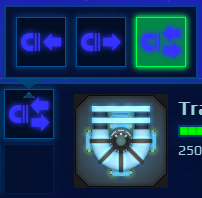
Another commonly-requested feature was the ability to tell a tractor beam to automatically push or pull to keep the other ship at the desired distance. You can now do that! Selecting a Tractor Beam and clicking its mode button will now display a 3rd "auto" option:


When this option is chosen, the Tractor Beam will attempt to keep the targeted ship at a specific distance, automatically switching to pull when the target is too far and switching to push when it is too near. The actual distance it tries to maintain is whatever distance you set when attacking or following the ship. (If you target the tractor beam on a ship that you aren't attacking or following, it will default to a distance of 125 meters.)


Improved Mines


"Mines need a buff!", you say! I hear you loud and clear! And so they've received one: Mines now release twice the number of shrapnel, which now also flies twice as far, making it harder to avoid them:


... And more!


This update also has a number of other fixes and minor improvements, which you can read about in the changelog.

Have fun!

Cosmoteer 0.14.12 - Play Creative Mode with your friends!

Cosmoteer update 0.14.12 is now available for download! This update allows makes Creative Mode available in multiplayer so that you can build and battle ships with your friends. It also adds ship building and repairing to Domination mode, allows the game speed to be changed or paused in all multiplayer modes, and improves the game save/load menu.


Multiplayer Creative Mode


Creative Mode can now be selected in multiplayer games! Simply select "Creative Mode" under the Game Mode drop-down.

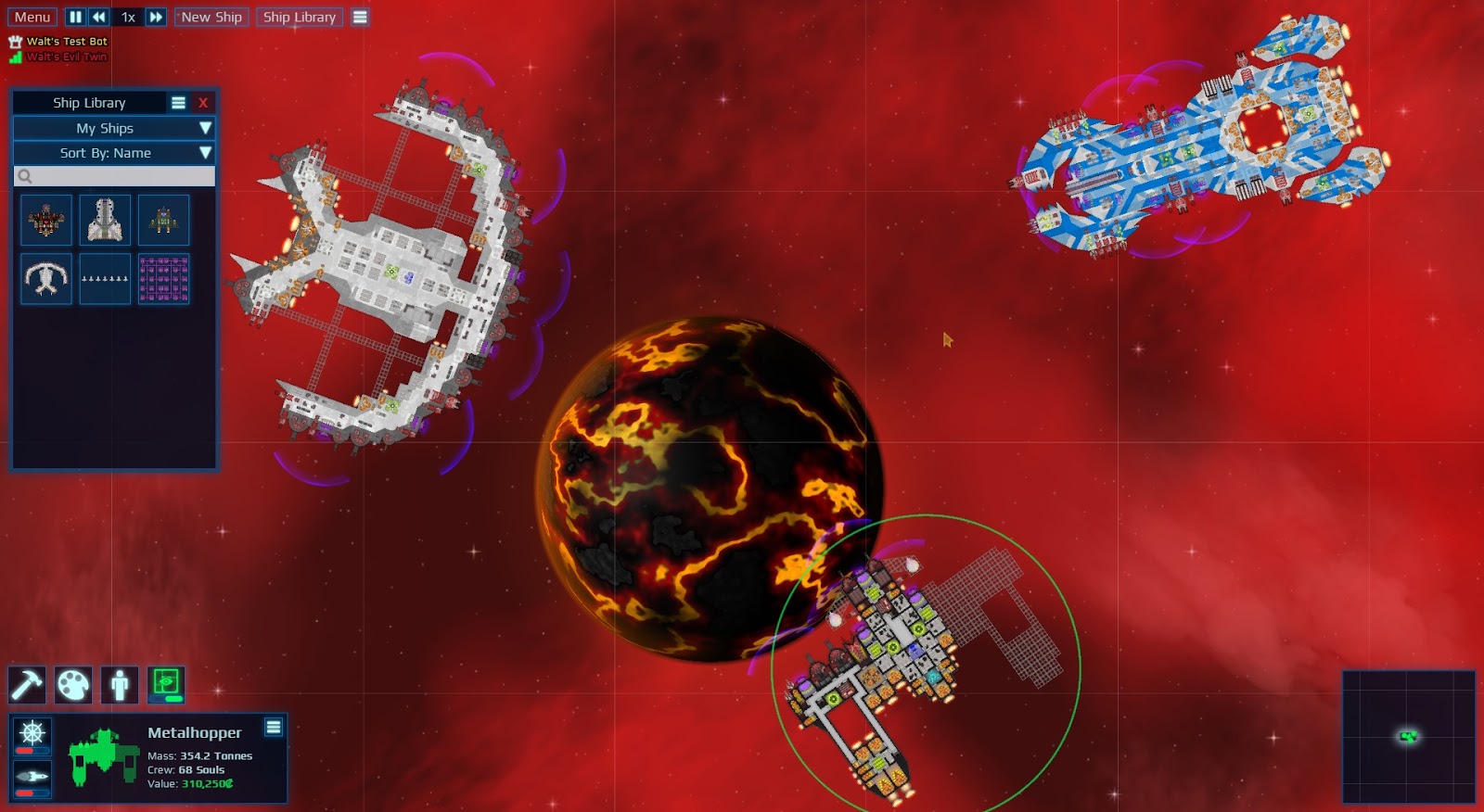
Multiplayer Creative Mode works almost exactly like the existing single-player Creative Mode. Players can spawn any ships from their own Ship Library or create a new ship from scratch. Multiple players can edit the same ship at the same time, allowing for collaborative ship designs. Ships can then be battled against each other or given an A.I. so you can sit back and watch the carnage. You can adjust the game speed and pause at any time, and you can even see the other player's mouse cursor to make communication and collaboration easier. 


Multiplayer Creative Mode also supports saving and loading saved game files, so you can save an in-progress build session and then resume it later. All Creative Mode saved games can be loaded in both single-player and multiplayer regardless of where they were originally saved.

While most Creative Mode features are available in multiplayer, a few are not due to their low priority and difficulty making work over a network. Most notably this includes the galaxy map (multiplayer creative mode is limited to a single sector) and the battle helper.

You may also run into some issues when multiple people are building on the same ship at the same time. For example, if two players build something on the same spot at approximately the same time, one of the player's changes will overwrite the other's. Additionally, each player has their own Undo & Redo history so that when you press Undo you won't revert something that another player built, but this also means that it may run into situations where you can't undo a change you made because that change conflicts with a change that another player made.


Other Multiplayer Improvements


Thanks to technology improvements that were implemented to support multiplayer Creative Mode, the other player-vs-player multiplayer game modes have also received a couple of small improvements.

First, all multiplayer modes now support pausing and changing the game speed during the battle, although this feature must be specifically turned on by the host. (By default, no one can pause or change the game speed, but the host has options to allow either anyone or only the host to pause change the game speed during the battle.)

And second, Domination mode now allows ships to be repaired and modified during the battle. Only ships that are within their own spawn areas can be repaired or modified. The host can turn off this new feature if desired.


Improved Saved Game Menu


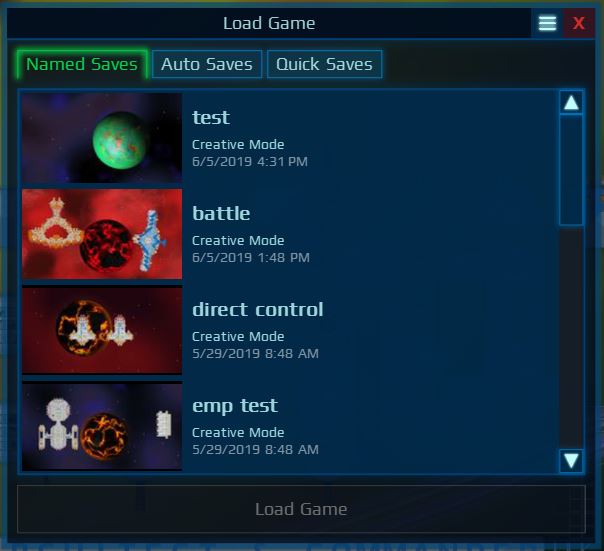
As a nice quality-of-life improvement, the menu for saving and loading games now shows a screenshot thumbnail of the saved game as well as the game mode (Bounty Hunter or Creative Mode) along with the existing name and date to make it easier to identify the particular save file you want to load, overwrite, or delete.


Note that while pre-0.14.12 saved game files are still supported, the screenshot thumbnail and game mode will not be displayed for them. (You can load and re-save to add those if you want.)


... And more!


This update also has a handful of other improvements and fixes, which you can read all about in the changelog.

Enjoy!