[h3]Q: What are the minimum and recommended specs for the game?[/h3]
A: Check out the tables below for all this information!
PC (Steam or Nexon Launcher):
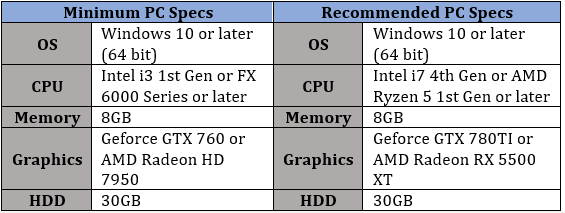
Mobile:

Console:
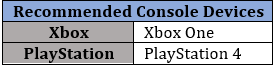
Please note: Some features may not be supported on next-gen consoles.
[h3]Q: What's needed to participate in the Grand Prix Season 1?[/h3]
A: You must have a B1 License to participate in the Season 1 Grand Prix.
Future seasons may have additional participation requirements.
[h3]Q: How do I change my Grand Prix Badge?[/h3]
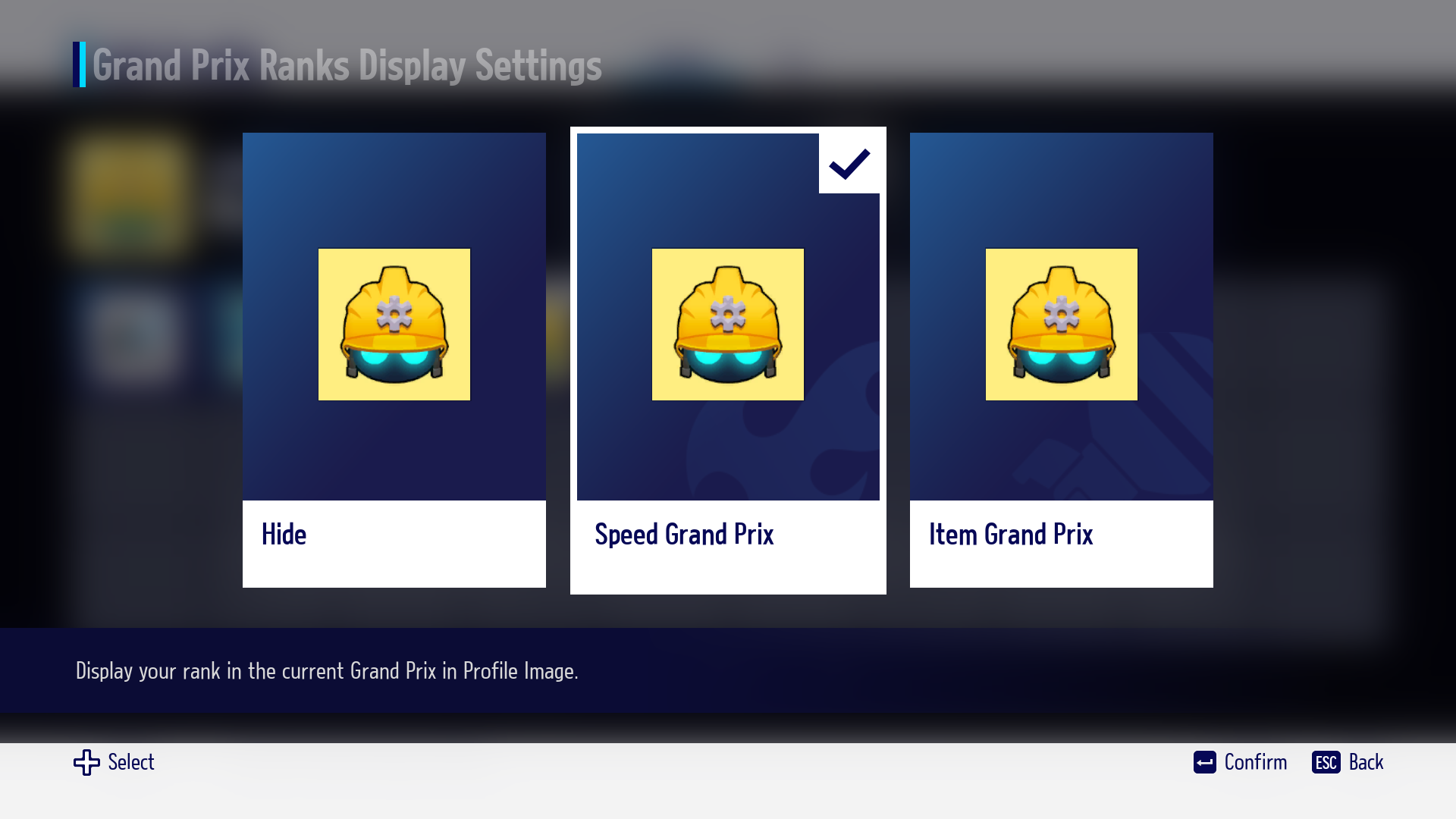
A: Your Grand Prix rank can be displayed in your Racer emblem.
You can choose to display your Grand Prix rank through the "Grand Prix Ranks Display Settings"
from [Lobby -> Profile -> Edit Profile -> Emblem] menu.
[h3]Q: What are the Grand Prix ranks and their criteria?[/h3]
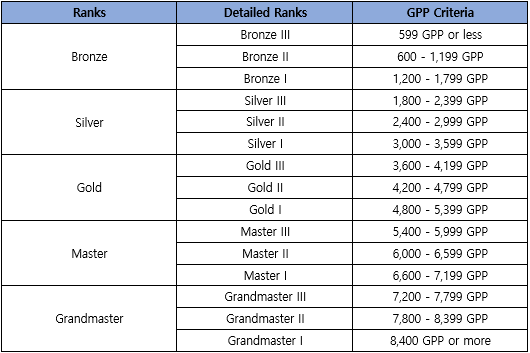
A: 1. Grand Prix Rank
- The ranks are, in order, Challenger > Bronze > Silver > Gold > Master > Grandmaster.
- Challengers are players who haven't played a single game after the Grand Prix has begun.
2. Grand Prix Points (GPP) Criteria per Rank
- Ranks are determined based on the GPP that's calculated every day between 12:00 AM - 1:00 AM UTC,
and can be seen in [Profile] - [Grand Prix Record].
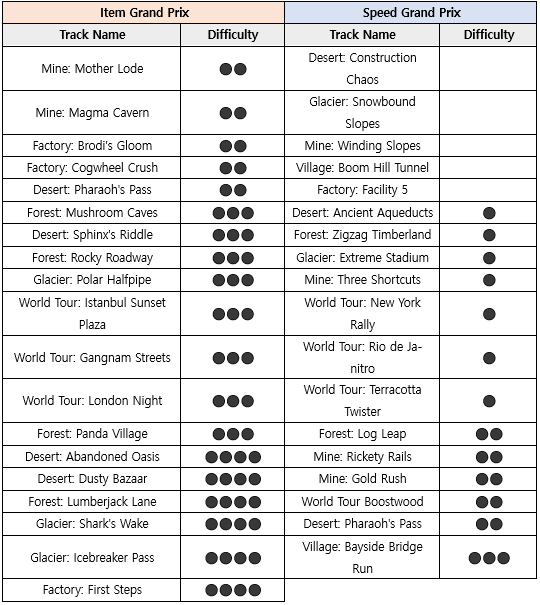
[h3]Q: I want to know more about Grand Prix tracks.[/h3]
[h3]Q: What are the Grand Prix rewards?[/h3]
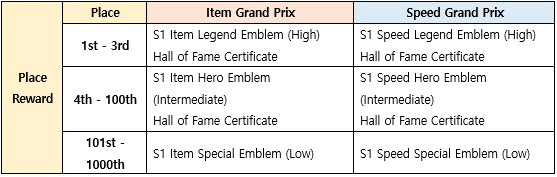
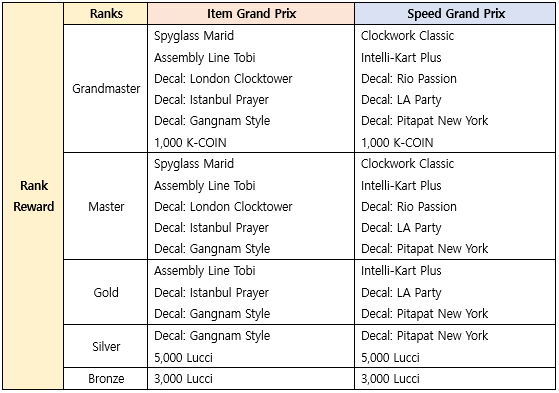
A: Grand Prix rewards are composed of Place Rewards and Rank Rewards, and are given out 24 hours after the season ends.
Please keep in mind that you will need to claim your rewards before the next season ends.
- Rewards are given based on your final rank and placement at the end of the season.
- Place Rewards and Rank Rewards are given together.
Place Rewards:
Rank Rewards:
[h3]Q: My Grand Prix placement isn't changing.[/h3]
A: Your Grand Prix rank and placement are determined by your accumulated GPP, and is updated every day between 12:00 AM - 1:00 AM UTC, and can be seen in the [Profile -> Grand Prix Record] menu.
[h3]Q: How do I upgrade the Kart?[/h3]
A: You can upgrade your Kart in the [Garage -> Kart -> Upgrade] menu.
-Equip the Kart you wish to upgrade in the [Change Karts] menu at the Garage.
-You can upgrade a Kart by using Lucci in the Upgrade Menu after equipping the Kart.
-Upgrades are possible up to Rare in Season 1.
More information regarding Kart Upgrades can be found via the
Official Community Game Guide.
[h3]Q: The 'Enter Racer Name' stage doesn't appear while playing on the console.[/h3]
A: Playing the game on a console platform will display the gamertag/online ID set on the platform's device as your Racer Name. As such, setting a new Racer Name is not possible.
If you wish for a specific Racer Name to be displayed in game, changing your gamertag/online ID on the console will also change your Racer Name.
[h3]Q: How do I change my Racer Name?[/h3]
A: Here's how to change Racer Name for each platform.
PC/Mobile:
1. Tap the [Lobby - Shop - Racer Name Change] button
- Basic hotkey R on the PC Platform, a button on the top right for the mobile platform
2. Enter and check the desired Racer Name
3. Change Racer Name after agreeing to purchase.
[Information]
- Racer Names cannot be changed for 15 days after an initial change.
- After the initial free change, changing Racer Names costs 1,000 K-COIN.
- Refunds or resets are not possible after being changed.
- Racer Names before the change can be re-used immediately.
- You cannot change a Racer Name to a deleted account/or a removed KartRider: Drift account.
Console:
Playing the game on a console platform will display the gamertag/online id set on the platform's device as your Racer Name. As such, setting a new Racer Name is not possible.
If you wish for a specific Racer Name to be displayed in game, changing your gamertag/online ID on the console will also change your Racer Name.
(Xbox)
1. Click the Xbox button on your controller
2. Select System > Settings > Personalization > My Profile > Edit Profile
3. Select Gamertag, then enter a new gamertag or select from the suggested list
(PlayStation)
1. Go to [Settings > Account Management > Account Information > Profile > Online ID] on your console
2. Enter a new Online ID or select one of the auto-suggested Online IDs
[h3]Q: What are Gears?[/h3]
A: Gears are materials that can be used to customize and improve your Kart's performance.
Gears are distributed based on the Kart's grade, and can be used in [Garage -> Kart -> Upgrade] menu.
Fine Grade rewards 7 Gears, and Rare Grade rewards 14 Gears.
Gears can be freely distributed between Speed, Acceleration, Boost Acceleration, and Boost Duration, so customize your Kart to your liking!
[h3]Q: I'm curious about the Kart Upgrade feature.[/h3]
A: You can modify the following features with Kart Upgrade:
1. Speed: Increases the default driving speed of the Kart.
2. Acceleration: Increases the Kart's forward acceleration, reverse acceleration, and top speed.
3. Boost Acceleration: Increases the top speed while in a Boost. Affects all Boosts, including starting and instant Boost.
4. Boost Duration: Increases the duration of the Boost. Affects all Boosts, including starting and instant Boost.
If you want to reinvest your upgraded Kart performance, you can return the gears with the [Reset Gears] button.
Please note that you can [Reset Gears] by consuming Lucci in the [Garage -> Kart Body -> Upgrade] menu!
[h3]Q: Please let me know how to capture screenshots, and where the saved image will be saved![/h3]
A: Here's how to take a screenshot for each platform.
[ PC ]
- How to take a screenshot: Press the keyboard shortcut F4 to take a shot.
- Save path: Your screenshots will be saved in the following location:
InstallDrive:\Users\AccountName\AppData\Local\KartDrift\Saved\Screenshots\WindowsNoEditor
[How to Enter Path].
1) Type appdata in the Run window
- You can open the Run window with the [Windows + R] shortcut or by searching for ""Run"" in Windows.
2) Go to AppData > Local > KartDrift > Saved > Screenshots > WindowsNoEditor
[ Mobile ]
- How to take a screenshot: There is no separate screenshot function in the game, but you can use the screen capture function available on your device.
- Save Path: Capture screenshots are saved in an album on your device.
[ PlayStation ]
- How to take a screenshot: Press the "SHARE" button on the top left of the console controller to freeze the current screen and capture it as a screenshot.
- Save Path: On the PlayStation main screen, press Menu>Settings, then find and click Storage to view the screenshots you've taken.
[ Xbox ]
- How to take a screenshot: Press the XBOX button, then press the Y button to take a screenshot.
- Save path: You can check the recent screenshots by pressing the XBOX button and selecting recent capture from the Broadcast & capture menu.
[h3]Q: I can't see my platform-exclusive Item![/h3]
A: Platform Reward Items awarded in giveaway events are platform-exclusive, and some items are not available when accessing other platforms. (They will not be displayed in the Garage.)
In other words, when you connect to the PC platform, you will not be able to use the carts and characters exclusively obtained from the iOS, Android, or other platforms.
(Cosmetic parts, like wheels, from the iOS platform can be used).
[h3]Q: Upon deleting my account, will only the KartRider: Drift data be deleted?[/h3]
A: Yes. The [Delete Account] feature available on mobile/console platforms will only delete the game data of 'KartRider: Drift'. Please note that data from other games linked to your Nexon account will be retained.
* Please note when deleting your account.
- The account deletion feature is only available on mobile/console platforms.
- Account deletion takes 15 days to complete, and you can cancel your deletion request by logging back in.
- All your currencies and items will be deleted and cannot be recovered after account deletion is complete.
- Once your account is deleted, you will be able to create a new Racer Name and start playing from the tutorial.
- You will not be able to reuse your old Racer Name after account deletion is complete.
[h3]Q: Tell me about the account deletion feature.[/h3]
A: The Delete Account feature deletes all game data for KartRider: Drift game data within your Nexon account.
You can delete your KartRider: Drift game data as follows.
* Only KartRider: Drift game data will be deleted, and all other Nexon game information will be retained.
You can delete your account from the [Menu -> Preferences -> Account Management] menu.
* Note
- The account deletion feature is only available on mobile/console platforms.
- Account deletion takes 15 days to complete, and you can cancel the deletion request by logging back in.
- All your goods and items will be deleted and cannot be recovered after account deletion is complete.
- Once your account is deleted, you will be able to create a new Racer Name and start playing from the tutorial.
- You will not be able to reuse your old Racer Name after account deletion is complete.
[h3]Q: I want to turn off the mobile vibration option.[/h3]
A: Vibrations that occur on collision can be turned ON/OFF in the Settings.
[PC/Console]
① Menu in Lobby - Settings
② General - Vibration function [Use/Do Not Use] setting at the bottom
[Mobile]
① Gear icon in the upper right corner of the lobby - Settings
② General - Set [Use/Do Not Use] Vibration feature at the bottom of the screen
[h3]Q: A few of the Emote effects do not display![/h3]
A: If you're not seeing the effects of some Emotes, such as Dance (Diz) and Dance (Brian),
please check the following settings for each platform!
[PC/Console platform]
* In-game [Menu - Settings - Graphics - Model Detail] settings
If the Model Detail setting is set to [Low], the quality of model details will be reduced and some lighting effects, etc. may not be visible.
[Mobile Platform]
* Set the [Gear icon - Settings - Graphics - Graphic Detail] setting in the upper right corner of the lobby.
If Graphic Detail is set to [Low] or [Very Low], some lighting effects, etc. may not be exposed.
[h3]Q: I'm having trouble with Account Linking.[/h3]
A: If you are having problems with linking your account between your PC, Mobile, and Console devices, please see the following guides that may help resolve the problems:
-
CM Smallerbee's Video Series on Account Linking[h3]Q: Please tell me how to connect my Guest Account and Nexon account.[/h3]
A: To link your consoles (PlayStation, Xbox) and Steam guest accounts with your Nexon account, you can go to the link management page on the bottom of the KartRider: Drift homepage.
Please follow the steps on the
Account Linking page proceed with the linking process.
You may link accounts when you first launch the game, if you'd like to do so please refer to
our account linking guide videos.
[h3]- Guest account isn't linking to Nexon account.[/h3]
A: To link a guest account to a Nexon account
The Nexon account must have never been used to log into KartRider: Drift.
Even if you do not create a Racer Name, your Nexon account will be recorded with your KartRider: Drift information when you login.
So, please note that it is not possible to link a guest account if this is the case.
[h3]Q: I want to link a guest account to a Nexon account that already has game information.[/h3]
A: You can link the account after deleting all the KartRider: Drift information on that Nexon account.
[h3]Q: How do I delete my KartRider: Drift account?[/h3]
A: Console: Settings → Account Management → Delete Account menu
Mobile: Settings → Account Management → Deactivate Account
* Account deletion is only available on mobile and console platforms.
* After applying for deletion, a grace period of 15 days will be applied until the account is completely deleted.
* During the grace period, when you access the game, a pop-up menu will be displayed where you can choose whether to cancel the account deletion.
[h3]Q: What can you do on the manage link menu?[/h3]
A: Account Linking
- Account Linking means to link your existing Nexon account with the console/Steam platform account currently logged into the game.
- Once your account is linked to your Nexon account, you can use your Nexon account to play games on PC and mobile devices other than consoles/Steam.
- If you link your account, all game information will be saved to the linked Nexon account.
Unlinking an account
- Unlinking an account means unlinking your Nexon account from your guest account on the console/Steam platform.
- When accounts are unlinked, the KartRider: Drift data will remain only on the Nexon account.
: When you login to PC or mobile platforms with said Nexon account, you will be able to use the same data from the console/Steam on PC and mobile.
: Once the console/Steam platforms are unlinked, you can create a new guest account again when you select ""Play Now"" after accessing the game.
You can link the guest account with a Nexon account that has no play or access history for KartRider: Drift.
* You can link/unlink your account from the
Account Linking page.
[h3]Q: Console guest account information has been deleted incorrectly.[/h3]
A: Using the "Account Deletion" feature within the game for console guest accounts will delete the game data immediately without a grace period. Unfortunately, please note that the restoration of the deleted game data is difficult.
[h3]Q: How do I collect the platform giveaway reward?[/h3]
A: Platform exclusive giveaway event reward will be sent to your mailbox once, when you log in from each platform. The item sent to your mailbox will be stored for up to 30 days, and it can only be claimed from the pertinent platform.
- Reward Distribution Period: January 11, 2023 (Wed) - Until Season 2 Begins
Platform exclusive items will be distributed once per each platform, and they can be claimed multiple times on different platforms. But please note that they may be expressed differently in each platform due to the differing policies of each platform.
* Mobile/Console platform exclusive items can only be used within those platforms.
[h3]Q: What is the Porsche event?[/h3]
A: KartRider: Drift x Porsche Event
[View Details]• Event Period: March 8, 2023 (Wed) - Until Season 2 Begins
• Event Content: Log in during Season 1 to receive 718 Boxster"" Kart.
[Notes]
- Event rewards will be sent to the Mailbox within the game and stored for 30 days.
- If you fail to claim the mail during the period and it gets deleted, it cannot be restored.
[h3]Q: Are there perks for using the PlayStation Plus and Xbox Game Pass subscription services?[/h3]
A: You can receive the rewards below each season for using the PlayStation Plus or Xbox Game Pass subscription services.
[Season 1 Reward Guide]
- Schedule: March 9, 2023 (Thurs) 5:00 PM - May 8, 2023 (Mon) 1:00 AM UTC
- Reward: 14,000 Lucci (Can be obtained once per season)
- Eligibility: Subscribed to PlayStation Plus or Xbox Game Pass
- Conditions to obtain reward (Confirmation Required)
[h3]Q: I ran into a problem when playing the game![/h3]
A: If you're having problems playing KartRider: Drift, please let us know at one of the below locations so that we can improve the game for everyone:
-
Bug Reports-
Crash/Disconnect Reports-
SuggestionsDidn't see your question on this list? Post it on our
official forums, ask it in our
official discord, or reach out to
player support!
※ Updated: 3/08/2023
※ The images in this guide were taken from the test environment.